iPhone Storage Full? How to Free Up Space Without Deleting Photos
'iPhone Storage Full' always pops up at the worst moment, usually when you're trying to take a photo.
Before you start deleting precious pictures, check iPhone Storage. It shows exactly what's using the space and offers one-tap fixes.
What does Free up storage do?
The iPhone Storage screen breaks down what's using your space by app, and suggests quick wins. Offloading an app removes the app but keeps its documents and data, so everything comes back when you reinstall it. It can also clear old message attachments and large videos.
Takes: 5 minutes · Works on: Any iPhone, iOS 11 or later · Cost: free, built into your iPhone
Where to find it
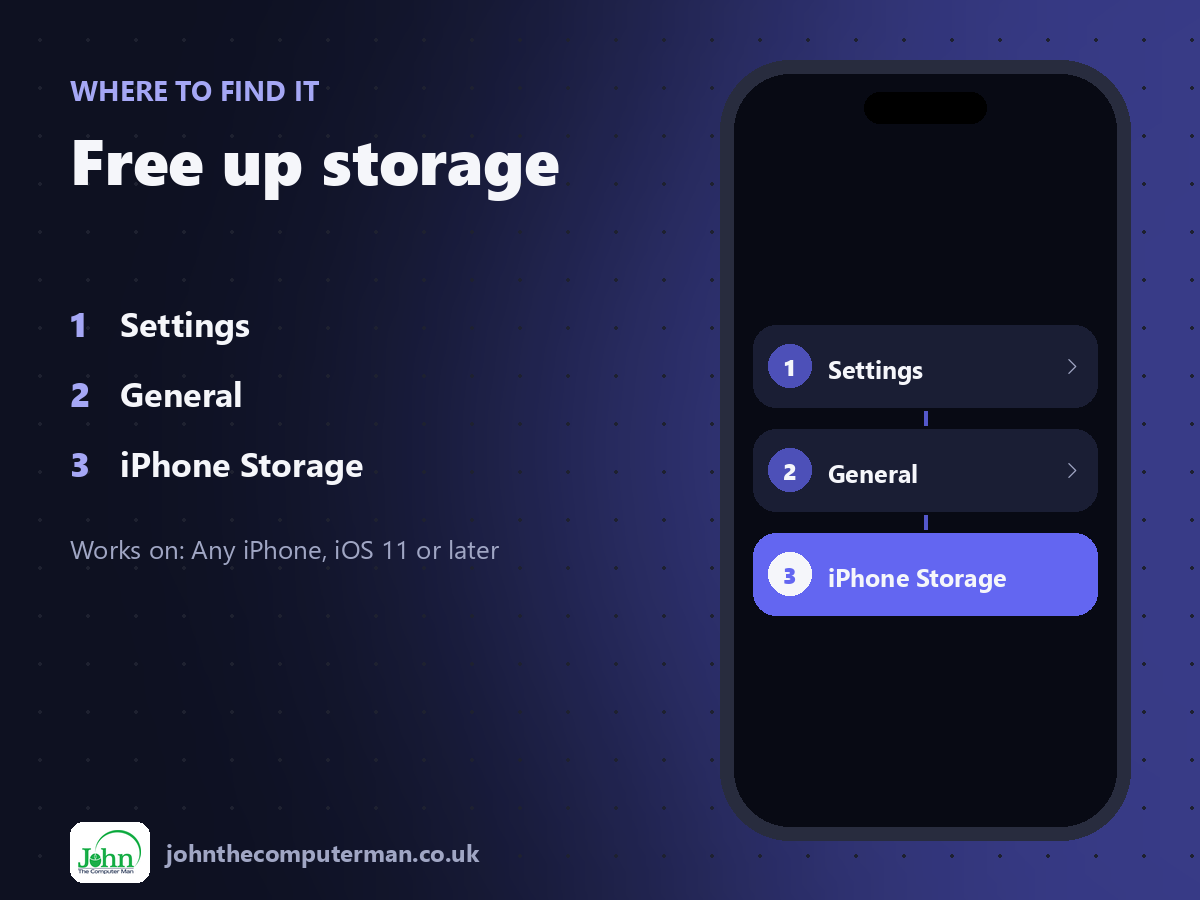
Settings > General > iPhone Storage
Free up storage: step by step
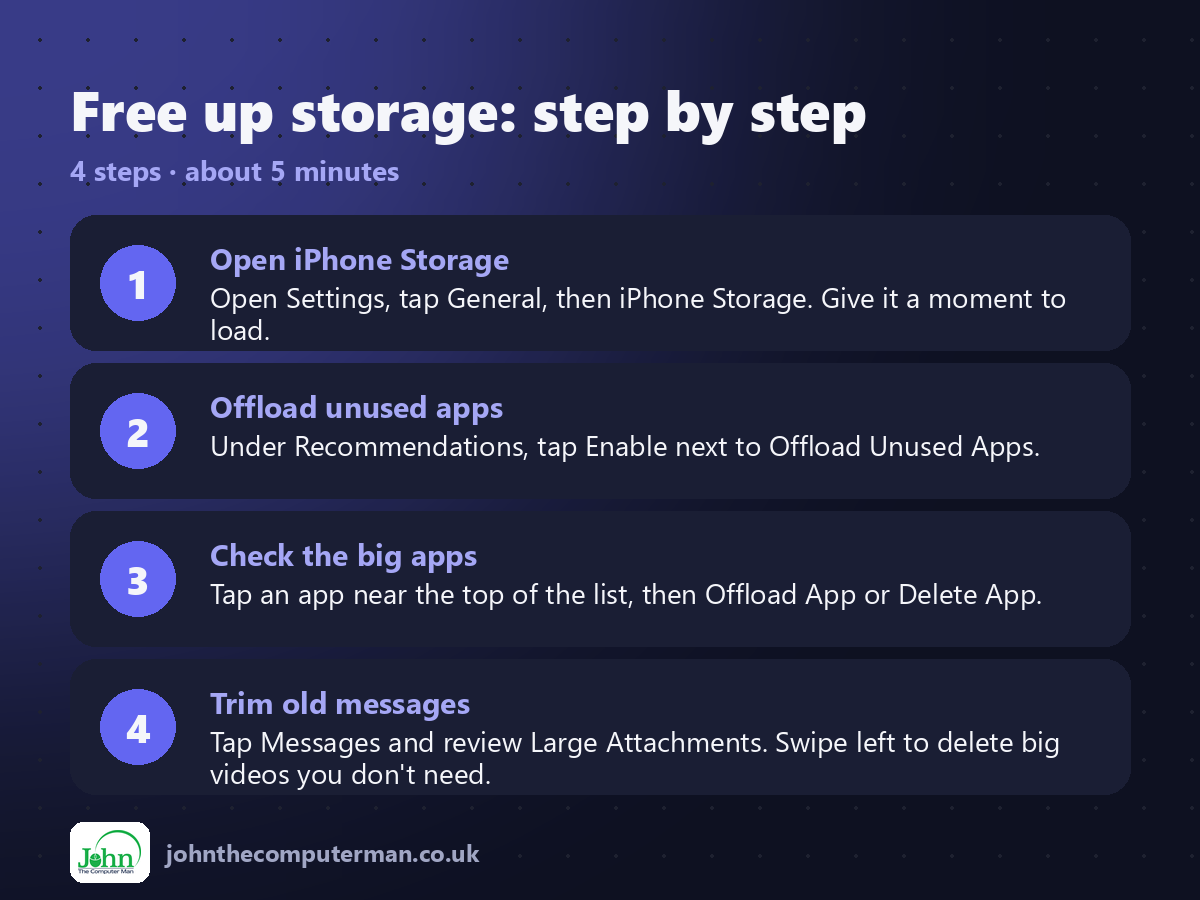
1. Open iPhone Storage. Open Settings, tap General, then iPhone Storage. Give it a moment to load.
2. Offload unused apps. Under Recommendations, tap Enable next to Offload Unused Apps.
3. Check the big apps. Tap an app near the top of the list, then Offload App or Delete App.
4. Trim old messages. Tap Messages and review Large Attachments. Swipe left to delete big videos you don't need.
2. Offload unused apps. Under Recommendations, tap Enable next to Offload Unused Apps.
3. Check the big apps. Tap an app near the top of the list, then Offload App or Delete App.
4. Trim old messages. Tap Messages and review Large Attachments. Swipe left to delete big videos you don't need.
Pro tip
💡 Deleted photos stay in Recently Deleted for 30 days. Empty it in Photos > Albums > Recently Deleted to get the space back now.
More tips
• Set Messages to keep texts for one year: Settings > Apps > Messages > Keep Messages.
• Turn on Optimise iPhone Storage in Photos settings to keep smaller copies on your phone and the originals in iCloud.
• Streaming apps' downloaded episodes add up fast. Delete ones you've watched.
• Restart your iPhone after a big clear-out. It helps the storage figure catch up.
• Turn on Optimise iPhone Storage in Photos settings to keep smaller copies on your phone and the originals in iCloud.
• Streaming apps' downloaded episodes add up fast. Delete ones you've watched.
• Restart your iPhone after a big clear-out. It helps the storage figure catch up.
FAQ
What's the difference between offload and delete?
Offload removes the app but keeps your documents and data. Delete removes both.
What is 'System Data'?
Caches, logs and temporary files. It shrinks on its own over time, and a restart often helps.