How to Use Your iPhone as a Wi-Fi Hotspot for Your Laptop
The hotel Wi-Fi is useless, the train Wi-Fi keeps dropping, or the broadband's down at home. But your phone has 5 bars of 4G.
Personal Hotspot turns your iPhone into a Wi-Fi network your laptop, tablet or a friend's phone can join.
What does Personal Hotspot do?
Personal Hotspot shares your iPhone's mobile data connection over Wi-Fi, Bluetooth or USB. Other devices join it like any Wi-Fi network, using a password you set. Your own Apple devices signed in to the same Apple Account can join without the password.
Takes: 1 minute · Works on: Any iPhone with mobile data (depends on your mobile plan) · Cost: free, built into your iPhone
Where to find it
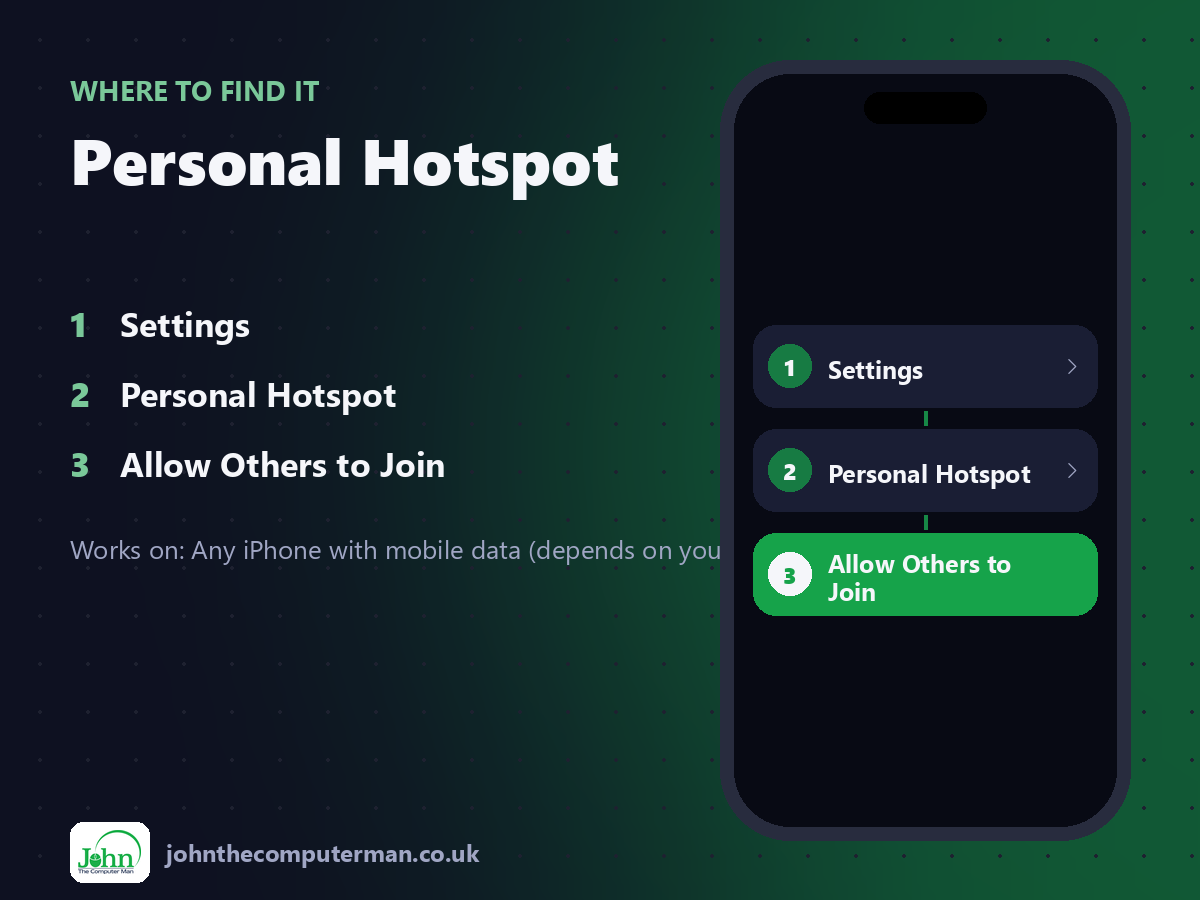
Settings > Personal Hotspot > Allow Others to Join
Personal Hotspot: step by step
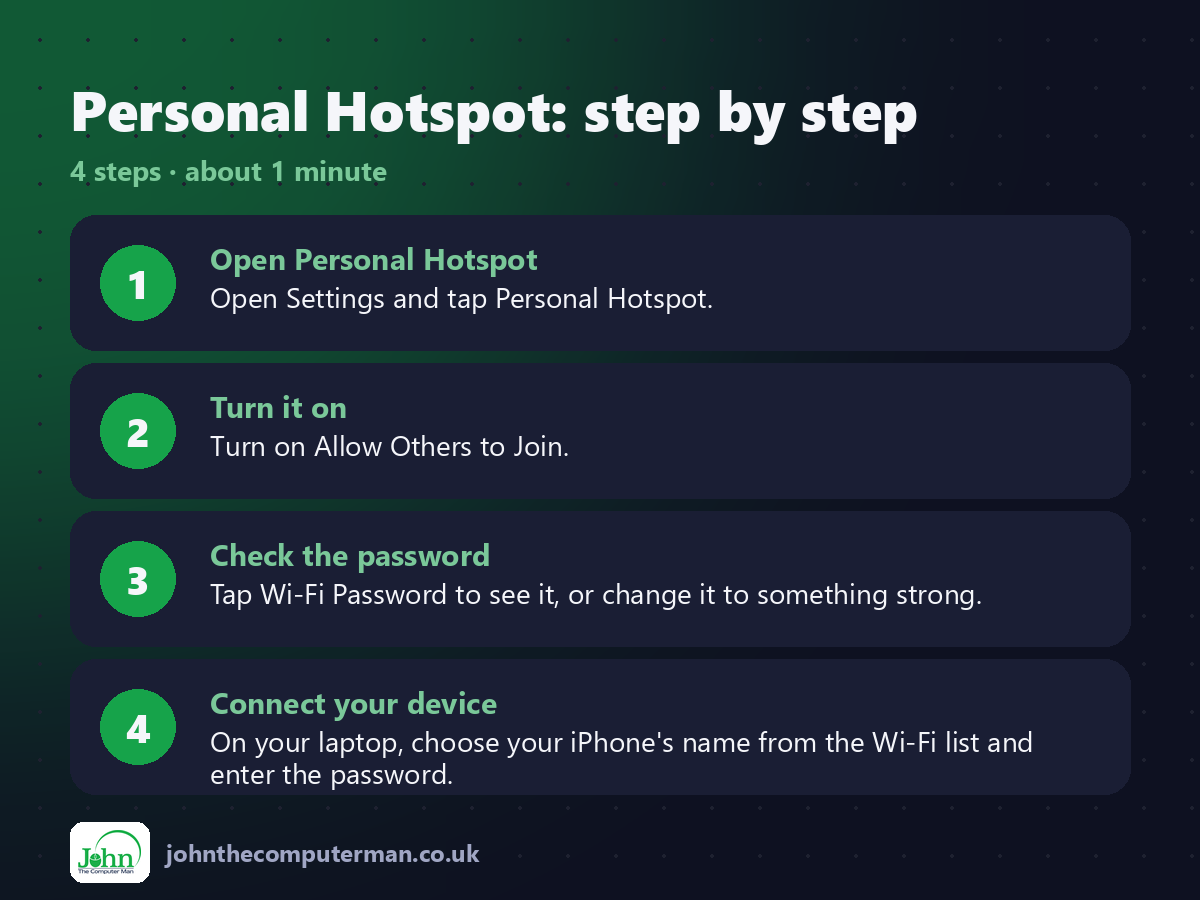
1. Open Personal Hotspot. Open Settings and tap Personal Hotspot.
2. Turn it on. Turn on Allow Others to Join.
3. Check the password. Tap Wi-Fi Password to see it, or change it to something strong.
4. Connect your device. On your laptop, choose your iPhone's name from the Wi-Fi list and enter the password.
2. Turn it on. Turn on Allow Others to Join.
3. Check the password. Tap Wi-Fi Password to see it, or change it to something strong.
4. Connect your device. On your laptop, choose your iPhone's name from the Wi-Fi list and enter the password.
Pro tip
💡 Watch your data: streaming and updates on a laptop can eat gigabytes. Check your usage in Settings > Mobile Service.
More tips
• Turn on Maximise Compatibility if an older device can't see your hotspot.
• The blue or green bubble at the top of your screen shows when devices are connected.
• Turn it off when you're finished to save battery.
• Some mobile plans limit or charge for hotspot data. Check yours.
• The blue or green bubble at the top of your screen shows when devices are connected.
• Turn it off when you're finished to save battery.
• Some mobile plans limit or charge for hotspot data. Check yours.
FAQ
Why can't I see Personal Hotspot?
Your mobile network may need to enable it. Check Settings > Mobile Service > Personal Hotspot, or contact your network.
Does it drain the battery?
Yes, fairly quickly. Plug your iPhone in if you're using it for a while.