How to Use Scheduled Summary to Tame iPhone Notifications
Shopping deals, game rewards, news alerts, social media likes. Most notifications can wait, but they interrupt you anyway.
Scheduled Summary collects the non-urgent ones and delivers them together at times you choose, like 8am and 6pm.
What does Notification summary do?
Scheduled Summary gathers notifications from the apps you pick and delivers them as one tidy summary at set times. Messages from people and time-sensitive alerts still come through straight away, so you don't miss anything important.
Takes: 3 minutes · Works on: iOS 15 or later · Cost: free, built into your iPhone
Where to find it
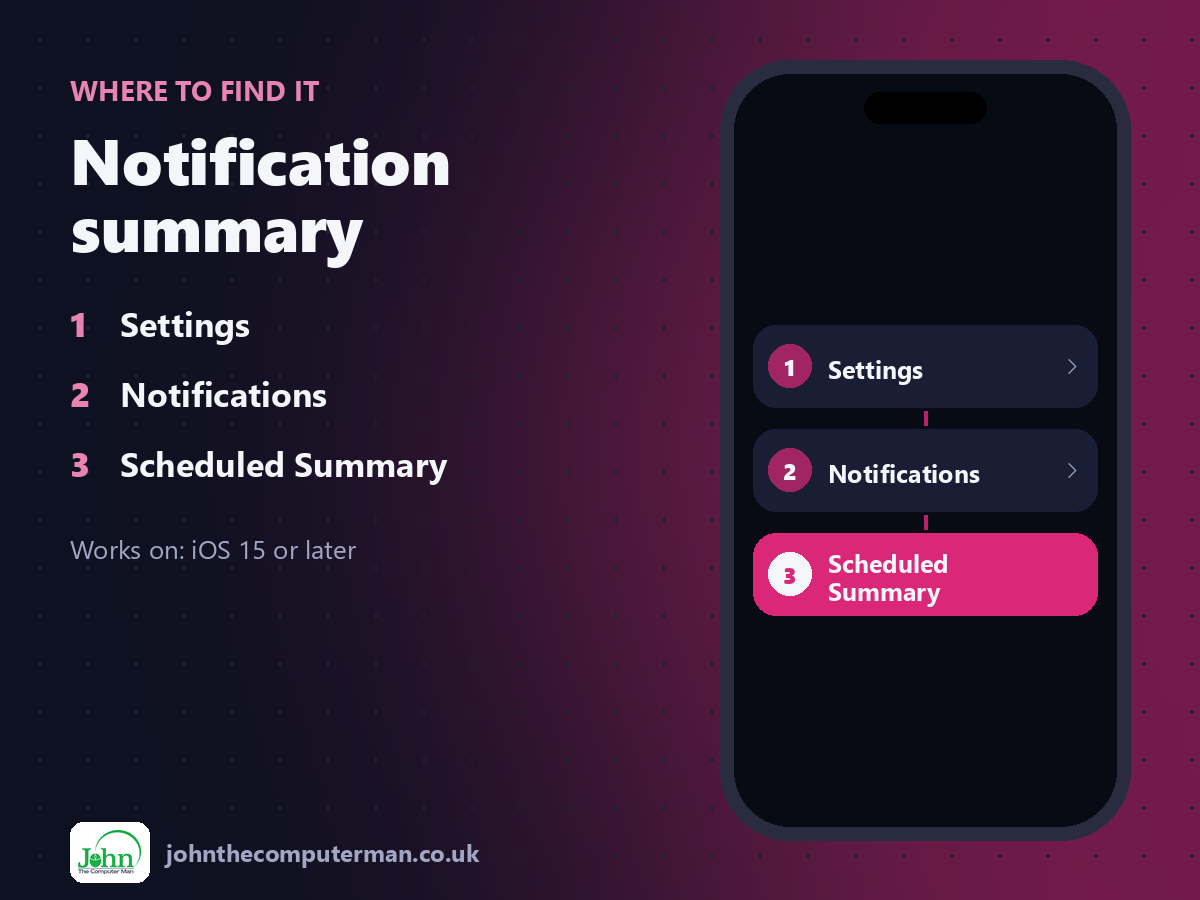
Settings > Notifications > Scheduled Summary
Notification summary: step by step
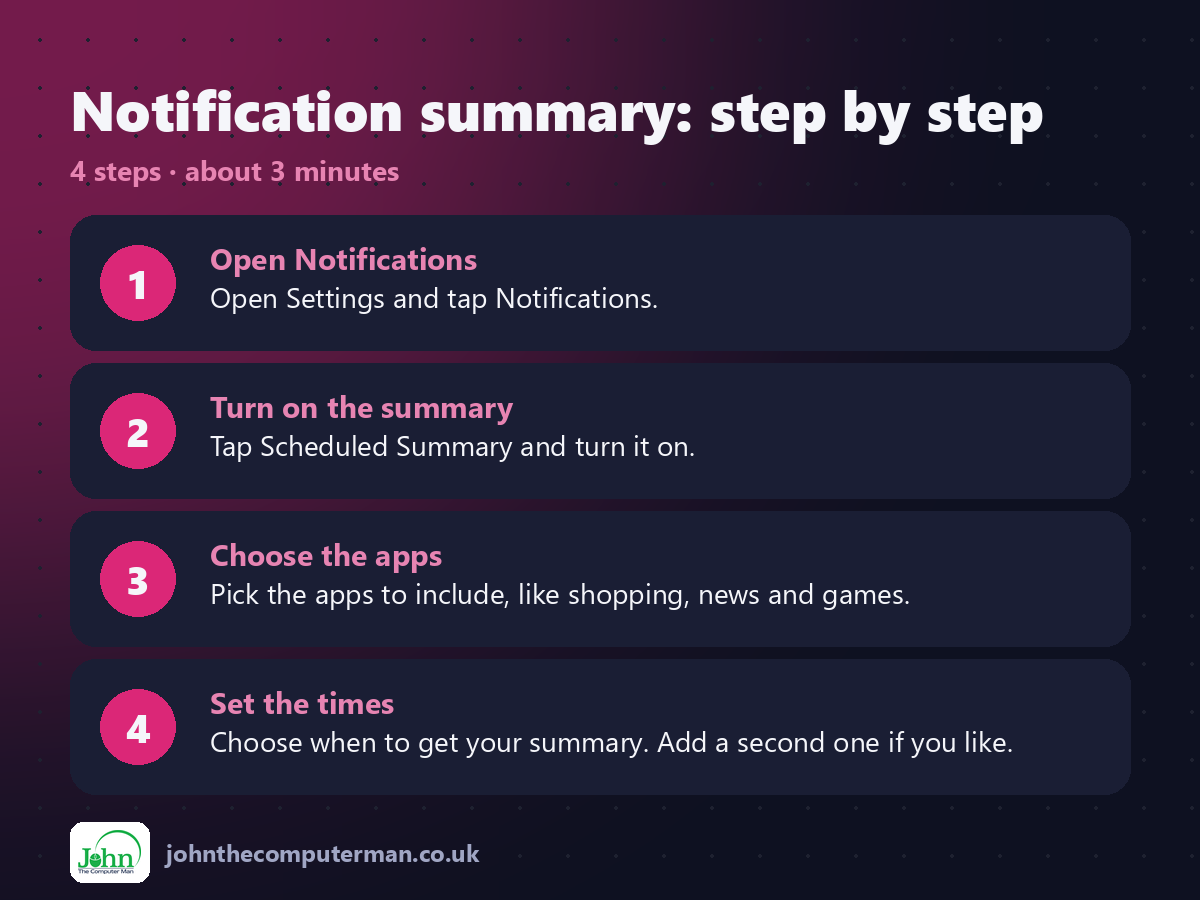
1. Open Notifications. Open Settings and tap Notifications.
2. Turn on the summary. Tap Scheduled Summary and turn it on.
3. Choose the apps. Pick the apps to include, like shopping, news and games.
4. Set the times. Choose when to get your summary. Add a second one if you like.
2. Turn on the summary. Tap Scheduled Summary and turn it on.
3. Choose the apps. Pick the apps to include, like shopping, news and games.
4. Set the times. Choose when to get your summary. Add a second one if you like.
Pro tip
💡 Leave messaging and banking apps out of the summary. Add everything that shouts 'look at me!' but can wait.
More tips
• Turn off notifications completely for apps you never act on.
• Apps you add to the summary still show up in it if they're marked time-sensitive.
• Try a morning and an early evening summary to start.
• Swipe left on any notification and tap Options to mute an app for an hour or a day.
• Apps you add to the summary still show up in it if they're marked time-sensitive.
• Try a morning and an early evening summary to start.
• Swipe left on any notification and tap Options to mute an app for an hour or a day.
FAQ
Will I miss messages from people?
No. Messages from people aren't delayed by the summary.
Can I see summarised notifications early?
Yes. Swipe up on the Lock Screen to see upcoming items in Notification Centre.