How to Use Reader in Safari on iPhone to Remove Ads and Clutter
You open a recipe and have to scroll past adverts, pop-ups, a video and someone's life story before you reach the ingredients.
Reader in Safari strips the page back to just the article, in clean, easy-to-read text you can make bigger.
What does Safari Reader do?
Reader is a view in Safari that removes adverts, menus and clutter from articles, leaving the text and main images. You can change the font, text size and background colour, and set websites to open in Reader automatically.
Takes: 10 seconds · Works on: Any iPhone · Cost: free, built into your iPhone
Where to find it
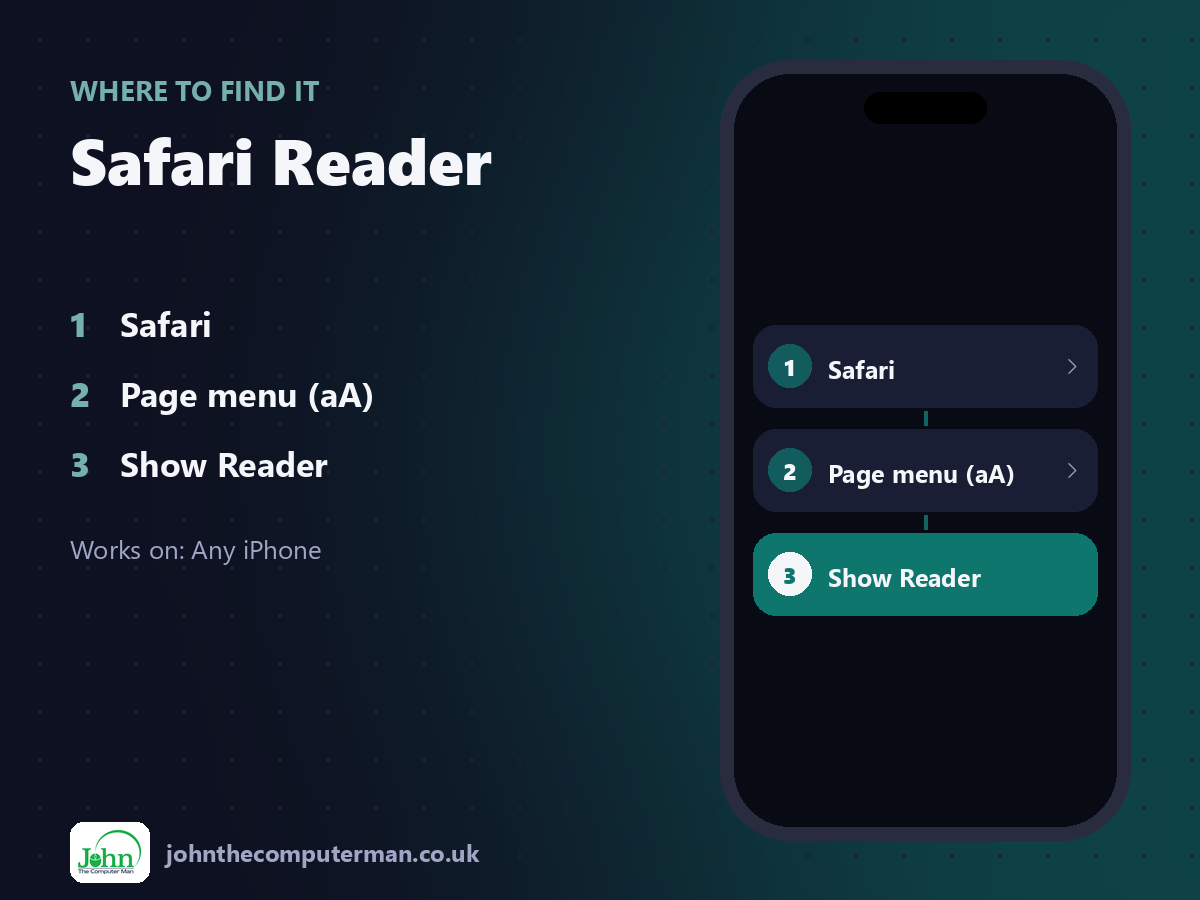
Safari > Page menu (aA) > Show Reader
Safari Reader: step by step
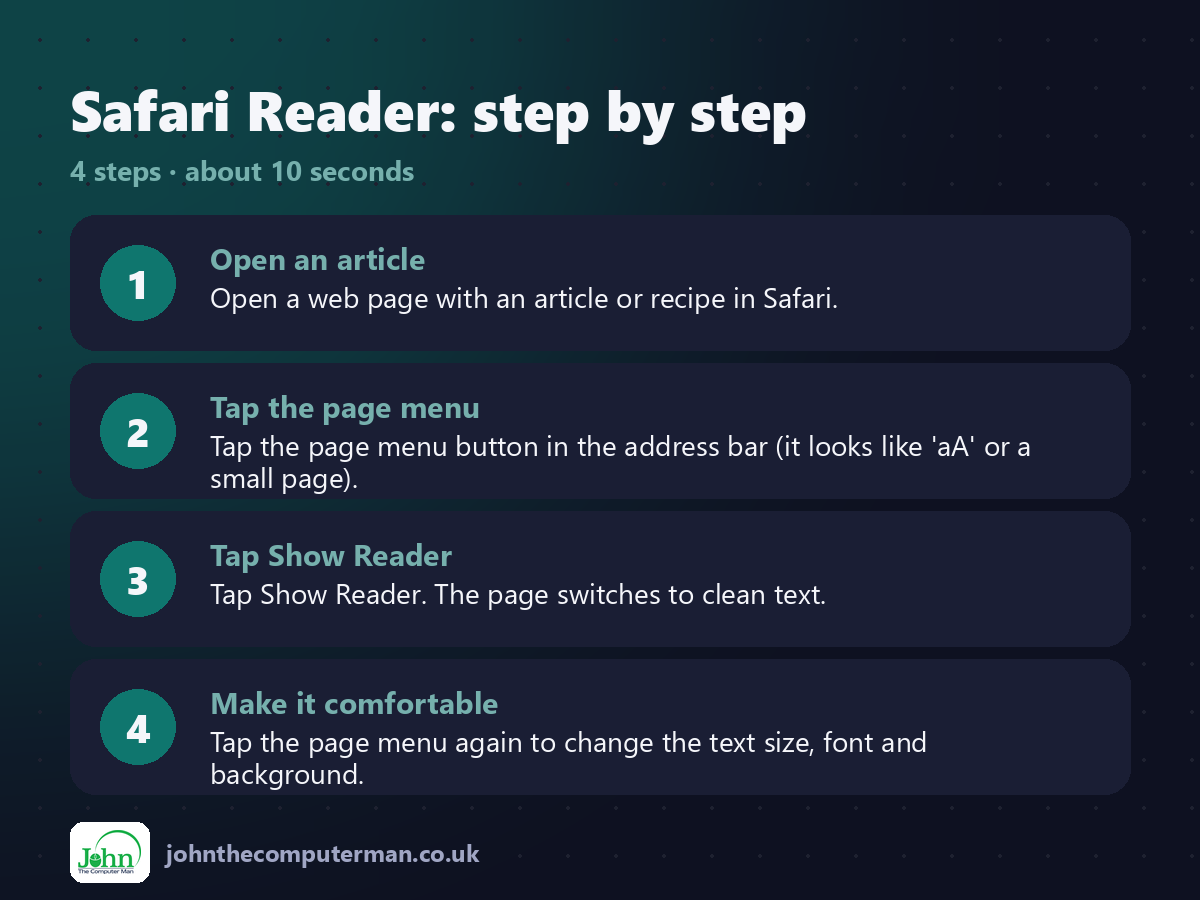
1. Open an article. Open a web page with an article or recipe in Safari.
2. Tap the page menu. Tap the page menu button in the address bar (it looks like 'aA' or a small page).
3. Tap Show Reader. Tap Show Reader. The page switches to clean text.
4. Make it comfortable. Tap the page menu again to change the text size, font and background.
2. Tap the page menu. Tap the page menu button in the address bar (it looks like 'aA' or a small page).
3. Tap Show Reader. Tap Show Reader. The page switches to clean text.
4. Make it comfortable. Tap the page menu again to change the text size, font and background.
Pro tip
💡 Love it? In the page menu, open Website Settings and turn on Use Reader Automatically for that site.
More tips
• Reader isn't available on every page, only ones Safari recognises as articles.
• Tap Listen to Page in the page menu to have the article read aloud.
• Save articles to your Reading List to read later, even offline.
• Tap Hide Reader to go back to the full page.
• Tap Listen to Page in the page menu to have the article read aloud.
• Save articles to your Reading List to read later, even offline.
• Tap Hide Reader to go back to the full page.
FAQ
Why is Show Reader greyed out?
Safari doesn't think the page is an article, so Reader isn't available there.
Does Reader block ads?
It hides them while you read, but it isn't a full ad blocker.