How to Use Reachability on iPhone to Reach the Top of the Screen One-Handed
Phones keep getting bigger, but thumbs don't. Reaching the back button at the top with one hand is a stretch, especially on the bus.
Reachability slides the top half of the screen down to where your thumb can reach it.
What does Reachability do?
Reachability temporarily moves everything on screen down by half, so buttons at the top are within reach of your thumb. One swipe brings it down, and it pops back up by itself after you tap something.
Takes: 30 seconds · Works on: Any iPhone · Cost: free, built into your iPhone
Where to find it
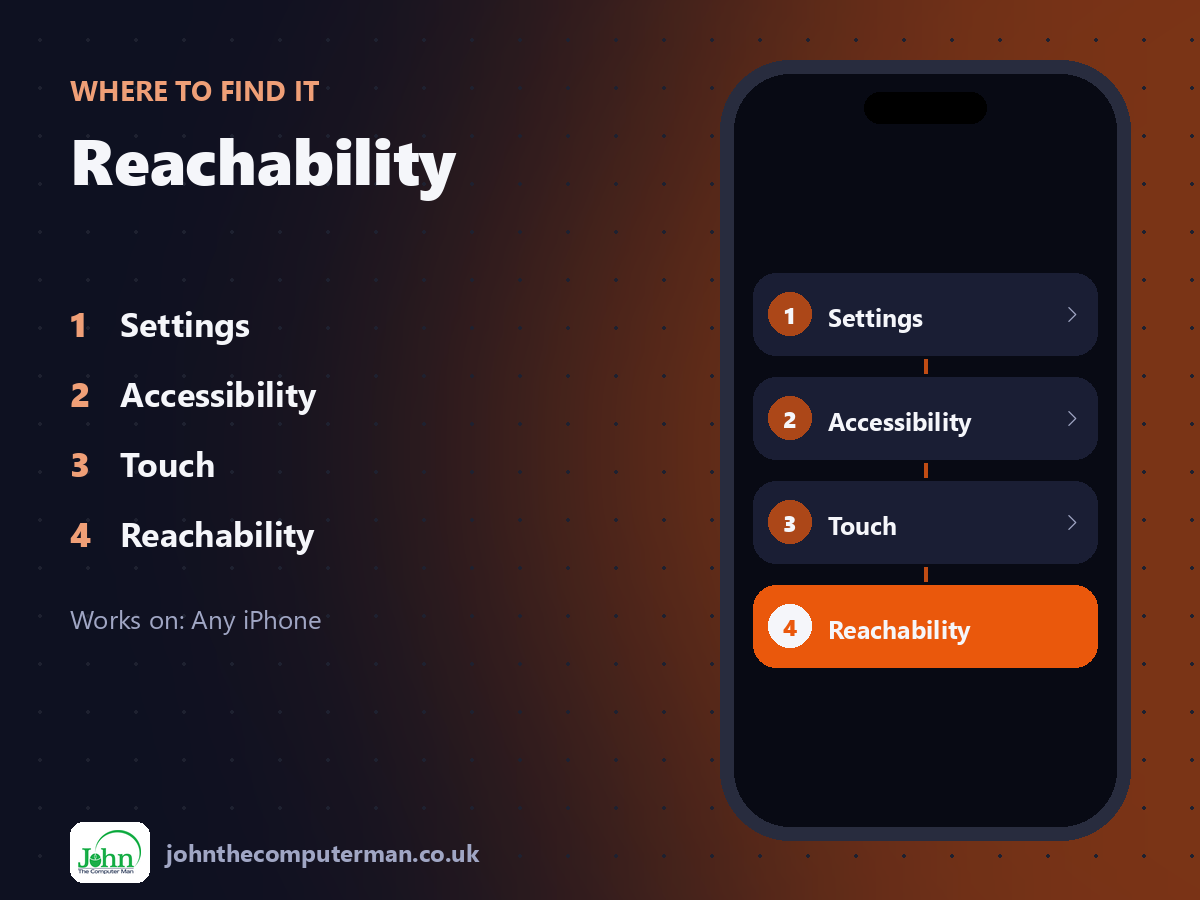
Settings > Accessibility > Touch > Reachability
Reachability: step by step
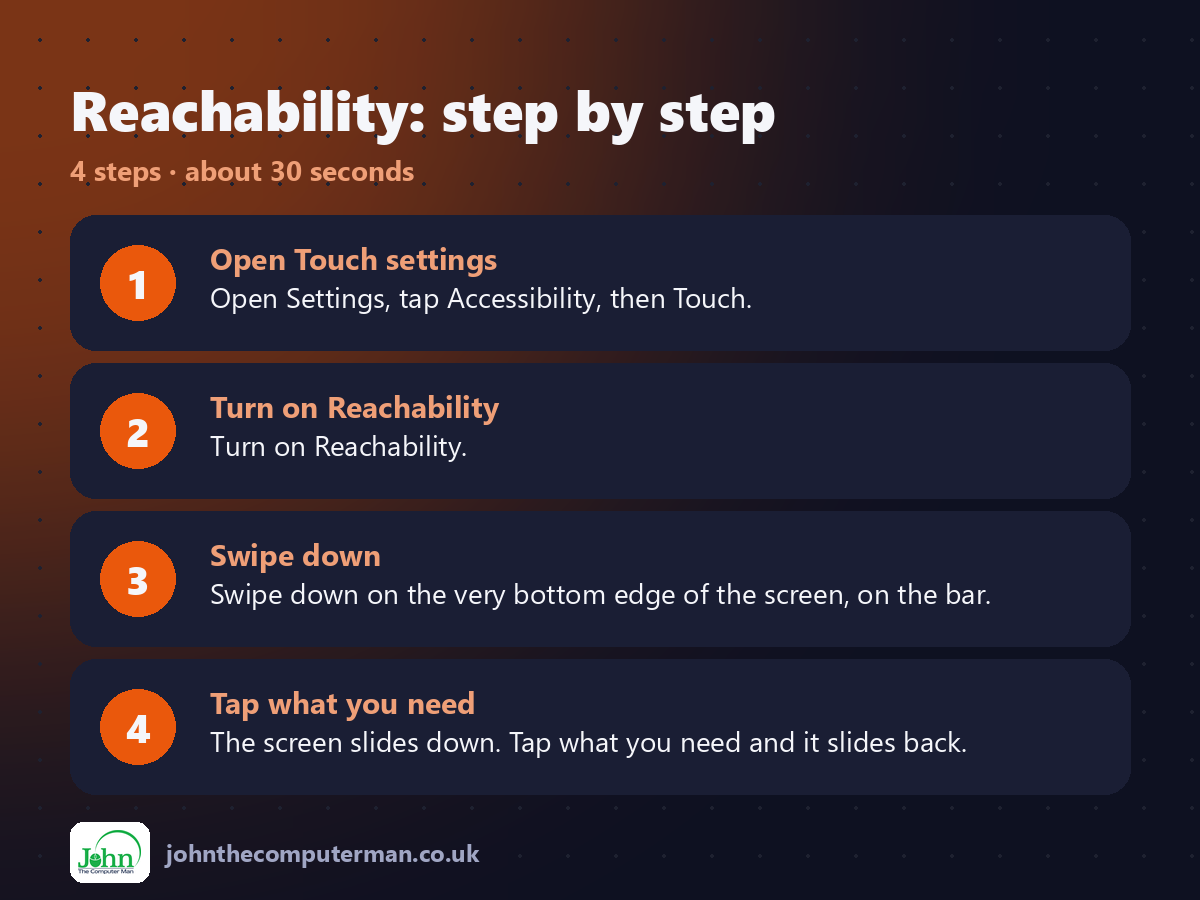
1. Open Touch settings. Open Settings, tap Accessibility, then Touch.
2. Turn on Reachability. Turn on Reachability.
3. Swipe down. Swipe down on the very bottom edge of the screen, on the bar.
4. Tap what you need. The screen slides down. Tap what you need and it slides back.
2. Turn on Reachability. Turn on Reachability.
3. Swipe down. Swipe down on the very bottom edge of the screen, on the bar.
4. Tap what you need. The screen slides down. Tap what you need and it slides back.
Pro tip
💡 Got a Home button iPhone? Lightly double-tap the Home button (touch, don't press) to do the same.
More tips
• Swipe down from the top-right of the lowered screen to open Control Centre one-handed.
• Tap the empty area at the top to send the screen back up.
• Combine with Back Tap for even more one-handed shortcuts.
• It takes a couple of tries to get the swipe right. Aim for the home bar.
• Tap the empty area at the top to send the screen back up.
• Combine with Back Tap for even more one-handed shortcuts.
• It takes a couple of tries to get the swipe right. Aim for the home bar.
FAQ
Why does my screen keep sliding down?
You're triggering Reachability by accident. Turn it off in Settings > Accessibility > Touch.
Does it work in every app?
Yes, it works across the whole system.