How to Use Private Browsing in Safari on iPhone (and Lock It With Face ID)
Buying a birthday present, researching something personal, or just borrowing someone else's phone for a search.
Private Browsing in Safari doesn't save your history, searches or AutoFill details, and your private tabs can be locked behind Face ID.
What does Private Browsing do?
In a Private Browsing window, Safari doesn't remember the pages you visit, your search history or AutoFill information. Private tabs aren't shared with your other devices, and they can lock when you're not using them, needing Face ID, Touch ID or your passcode to open.
Takes: 30 seconds · Works on: Any iPhone (Face ID lock needs iOS 17 or later) · Cost: free, built into your iPhone
Where to find it
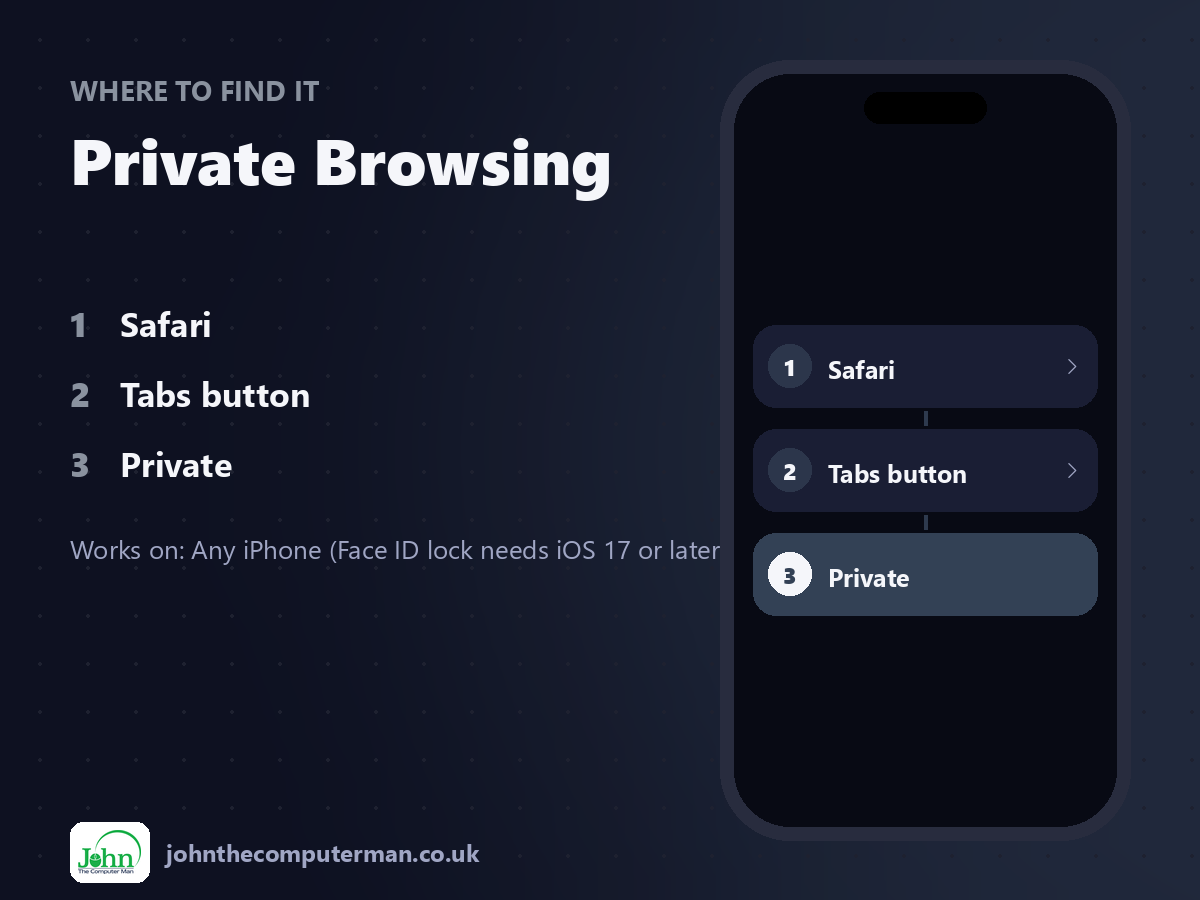
Safari > Tabs button > Private
Private Browsing: step by step
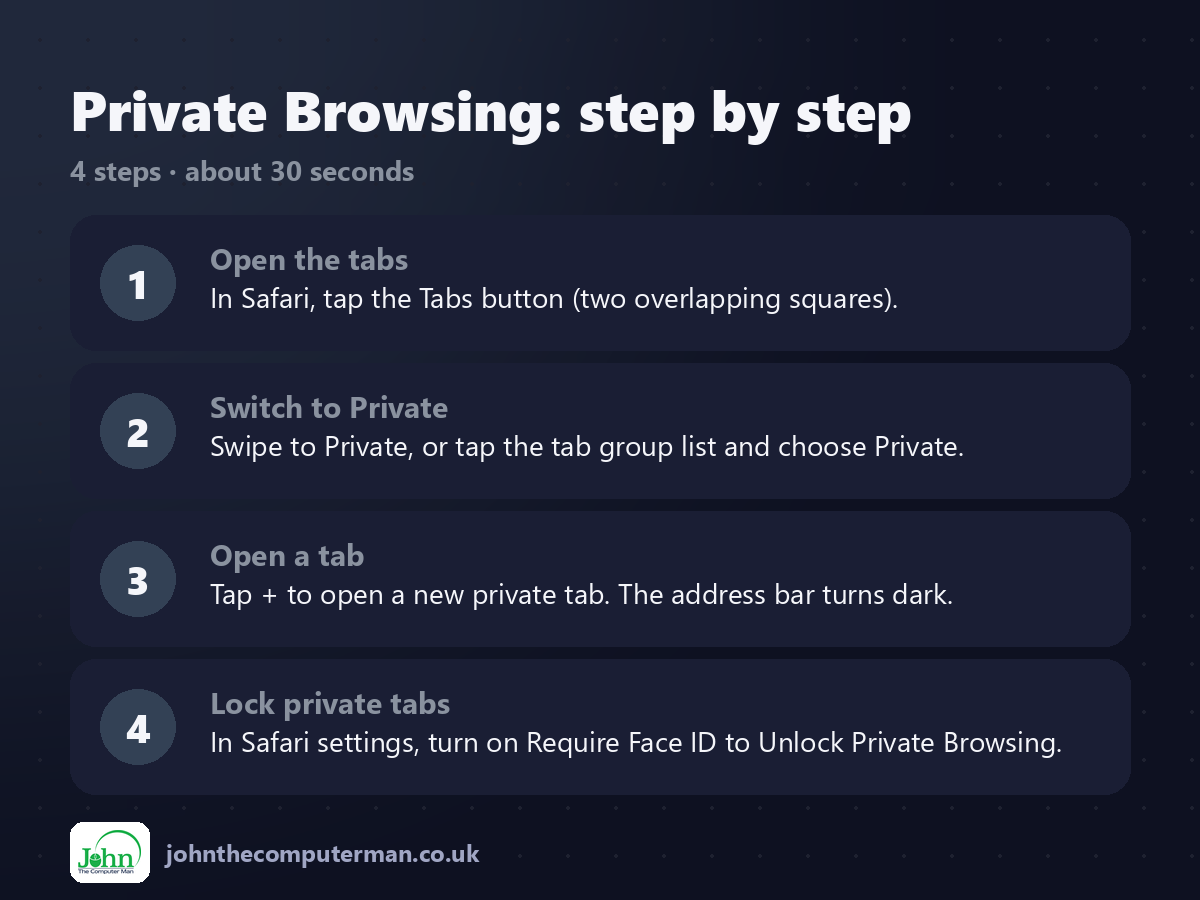
1. Open the tabs. In Safari, tap the Tabs button (two overlapping squares).
2. Switch to Private. Swipe to Private, or tap the tab group list and choose Private.
3. Open a tab. Tap + to open a new private tab. The address bar turns dark.
4. Lock private tabs. In Safari settings, turn on Require Face ID to Unlock Private Browsing.
2. Switch to Private. Swipe to Private, or tap the tab group list and choose Private.
3. Open a tab. Tap + to open a new private tab. The address bar turns dark.
4. Lock private tabs. In Safari settings, turn on Require Face ID to Unlock Private Browsing.
Pro tip
💡 Private Browsing hides your history on this phone. It doesn't hide what you do from your internet provider, employer or the websites themselves.
More tips
• Safari's settings are in Settings > Apps > Safari on iOS 18 and later, or Settings > Safari on older versions.
• Touch and hold the Tabs button for a quick New Private Tab option.
• Close private tabs when you're done: touch and hold the Tabs button and choose Close All Tabs.
• Private Browsing also blocks known trackers and removes tracking from links.
• Touch and hold the Tabs button for a quick New Private Tab option.
• Close private tabs when you're done: touch and hold the Tabs button and choose Close All Tabs.
• Private Browsing also blocks known trackers and removes tracking from links.
FAQ
Is Private Browsing completely anonymous?
No. It stops your iPhone saving history. Websites, your network and your internet provider can still see your activity.
Do downloads disappear?
No. Files you download in a private tab are still saved to your iPhone.