How to Use Check In on iPhone to Let Someone Know You Got Home Safe
'Text me when you get home' is a lovely thing to say. It's also very easy to forget when you finally get through the door.
Check In does it for you. It tells your chosen person when you arrive, and alerts them if you don't.
What does Check In do?
Check In is part of Messages. You choose a destination or a timer, and your iPhone tells your friend or family member automatically when you arrive. If you don't arrive and don't respond, it shares useful details like your location and battery level with them.
Takes: 1 minute · Works on: iOS 17 or later on both iPhones · Cost: free, built into your iPhone
Where to find it
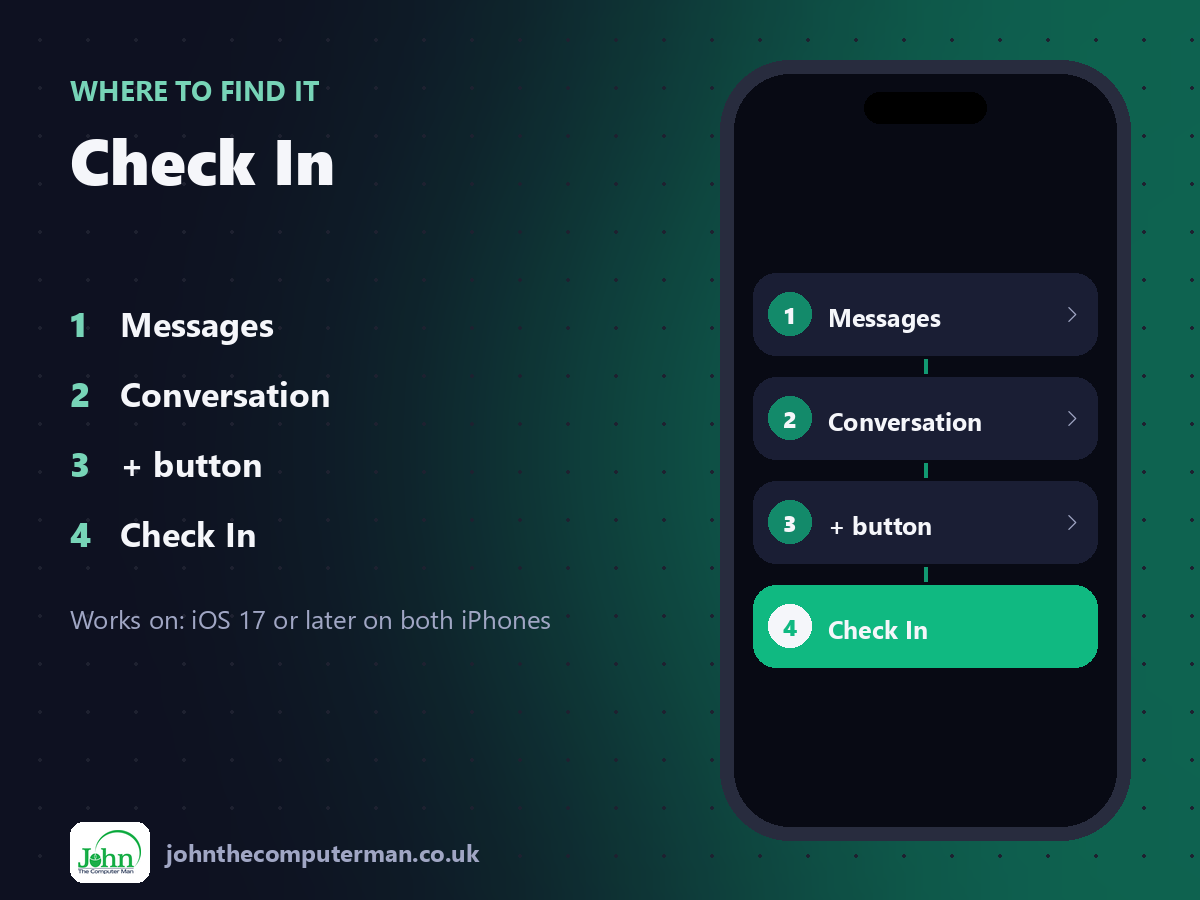
Messages > Conversation > + button > Check In
Check In: step by step
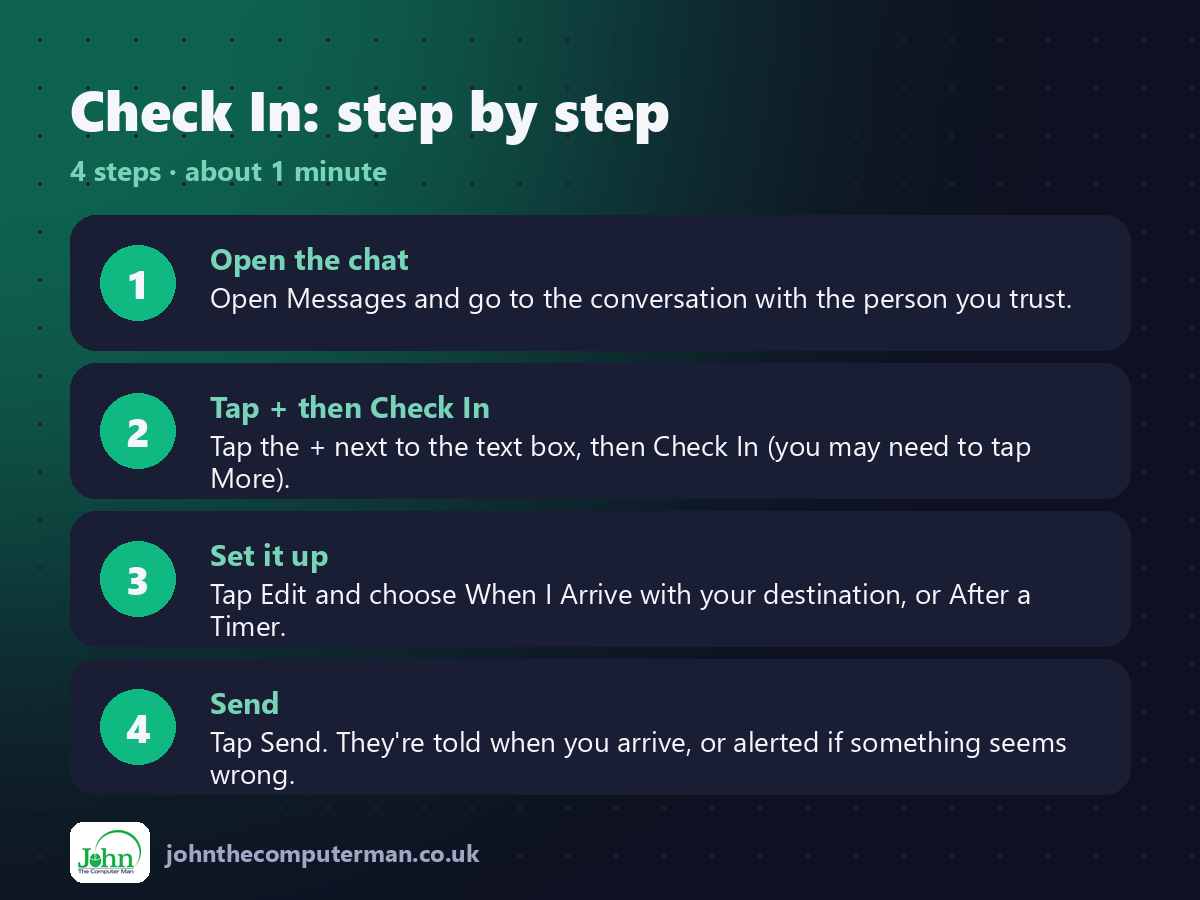
1. Open the chat. Open Messages and go to the conversation with the person you trust.
2. Tap + then Check In. Tap the + next to the text box, then Check In (you may need to tap More).
3. Set it up. Tap Edit and choose When I Arrive with your destination, or After a Timer.
4. Send. Tap Send. They're told when you arrive, or alerted if something seems wrong.
2. Tap + then Check In. Tap the + next to the text box, then Check In (you may need to tap More).
3. Set it up. Tap Edit and choose When I Arrive with your destination, or After a Timer.
4. Send. Tap Send. They're told when you arrive, or alerted if something seems wrong.
Pro tip
💡 Running late? Your iPhone asks if you want to add time before it alerts anyone. No false alarms.
More tips
• Both of you need iOS 17 or later.
• Choose Limited or Full for how much detail is shared if you don't arrive.
• Great for walking home at night, first dates and long drives.
• You can cancel a Check In at any time from the conversation.
• Choose Limited or Full for how much detail is shared if you don't arrive.
• Great for walking home at night, first dates and long drives.
• You can cancel a Check In at any time from the conversation.
FAQ
Does it share my location the whole time?
No. Details are only shared if you don't check in as expected.
What if my phone dies?
Your contact is alerted that the Check In didn't complete, with your last known details.