How to Use AssistiveTouch on iPhone When a Button Is Broken
A sticky side button or dead volume buttons can make an otherwise fine iPhone a real pain to use.
AssistiveTouch adds a floating button to your screen that can lock the phone, change the volume, take screenshots and more.
What does AssistiveTouch do?
AssistiveTouch is an accessibility feature that shows a movable on-screen button. Tap it for a menu of actions: Home, Siri, Control Centre, lock screen, volume, screenshot and restart. You can customise the menu and set shortcuts for a double tap or long press.
Takes: 2 minutes · Works on: Any iPhone · Cost: free, built into your iPhone
Where to find it
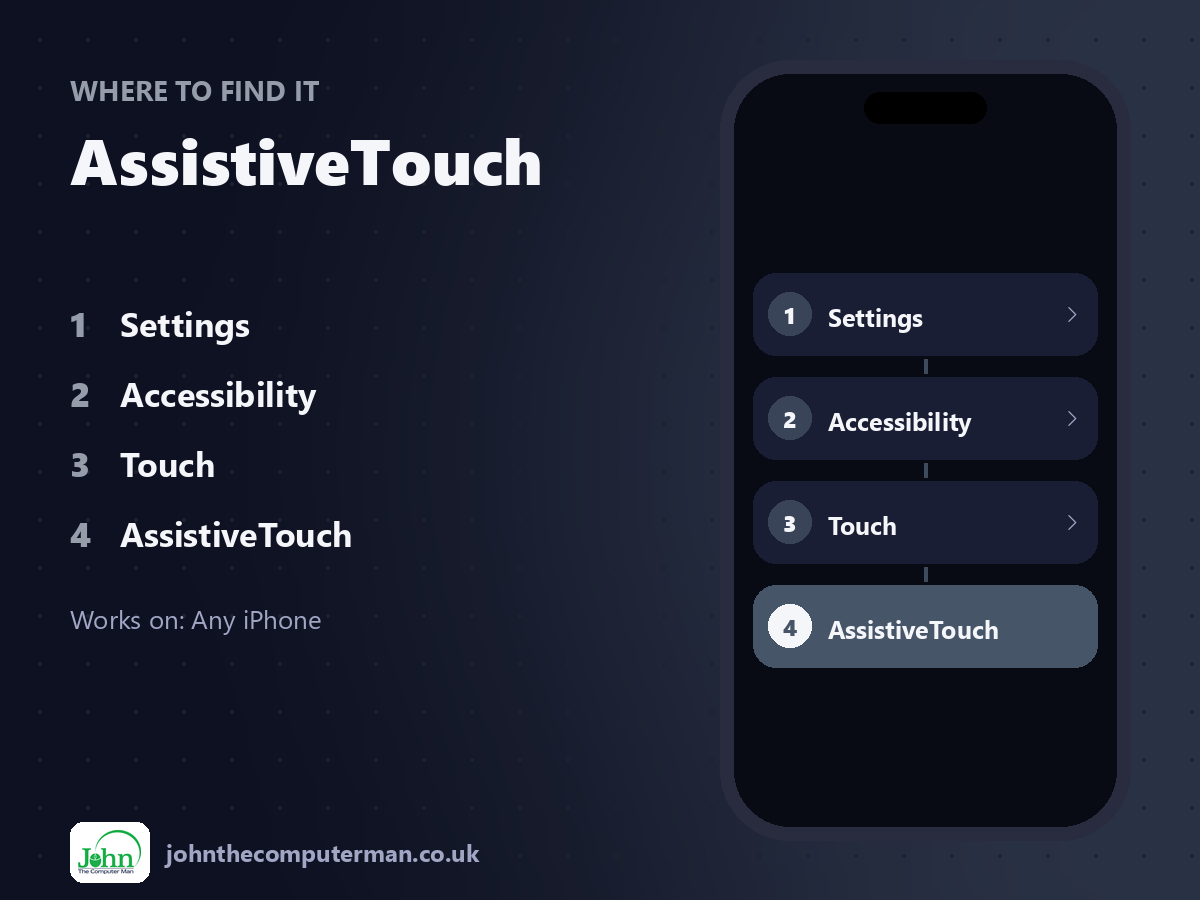
Settings > Accessibility > Touch > AssistiveTouch
AssistiveTouch: step by step
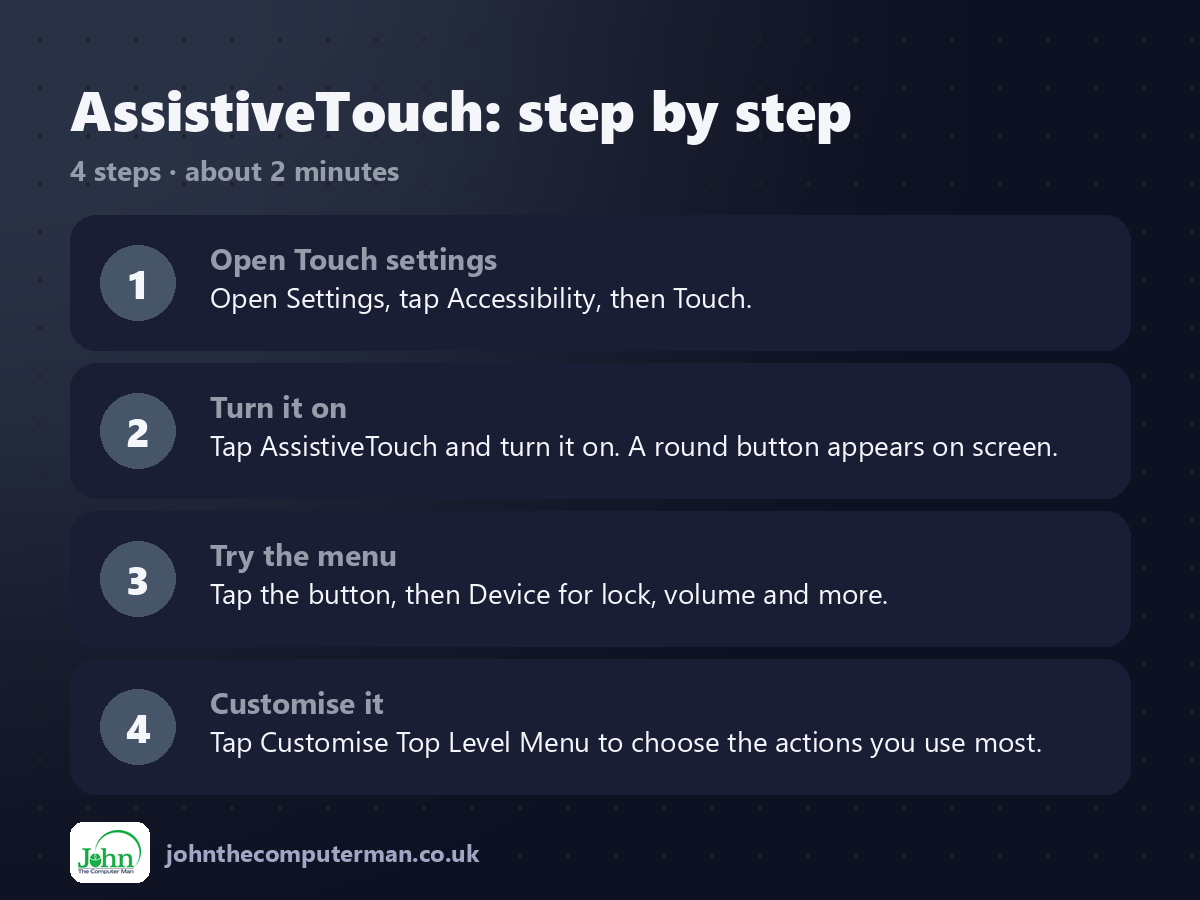
1. Open Touch settings. Open Settings, tap Accessibility, then Touch.
2. Turn it on. Tap AssistiveTouch and turn it on. A round button appears on screen.
3. Try the menu. Tap the button, then Device for lock, volume and more.
4. Customise it. Tap Customise Top Level Menu to choose the actions you use most.
2. Turn it on. Tap AssistiveTouch and turn it on. A round button appears on screen.
3. Try the menu. Tap the button, then Device for lock, volume and more.
4. Customise it. Tap Customise Top Level Menu to choose the actions you use most.
Pro tip
💡 Set Double-Tap to Screenshot and Long Press to Lock Screen. You may never need the real buttons.
More tips
• Drag the button to any edge of the screen to keep it out of the way.
• Lower Idle Opacity to make it fade when you're not using it.
• You can restart your iPhone from Device > More > Restart.
• Also helpful if pressing buttons is physically difficult.
• Lower Idle Opacity to make it fade when you're not using it.
• You can restart your iPhone from Device > More > Restart.
• Also helpful if pressing buttons is physically difficult.
FAQ
Does AssistiveTouch drain the battery?
No, the effect is negligible.
Can I turn it on quickly?
Yes. Add it to the Accessibility Shortcut or ask Siri to 'turn on AssistiveTouch'.