How to Turn Your Photos Into Stickers on iPhone
Emoji are fine, but nothing beats replying with a sticker of your own dog looking unimpressed.
Your iPhone can lift the subject out of almost any photo and turn it into a sticker, ready to use in Messages and other apps.
What does Photo stickers do?
Touch and hold the subject of a photo and your iPhone cuts it out from the background. You can save it as a sticker, add effects like a white outline, and use it from the emoji keyboard in Messages, Notes and more.
Takes: 10 seconds · Works on: iPhone XS, XR or later, iOS 17 or later · Cost: free, built into your iPhone
Where to find it
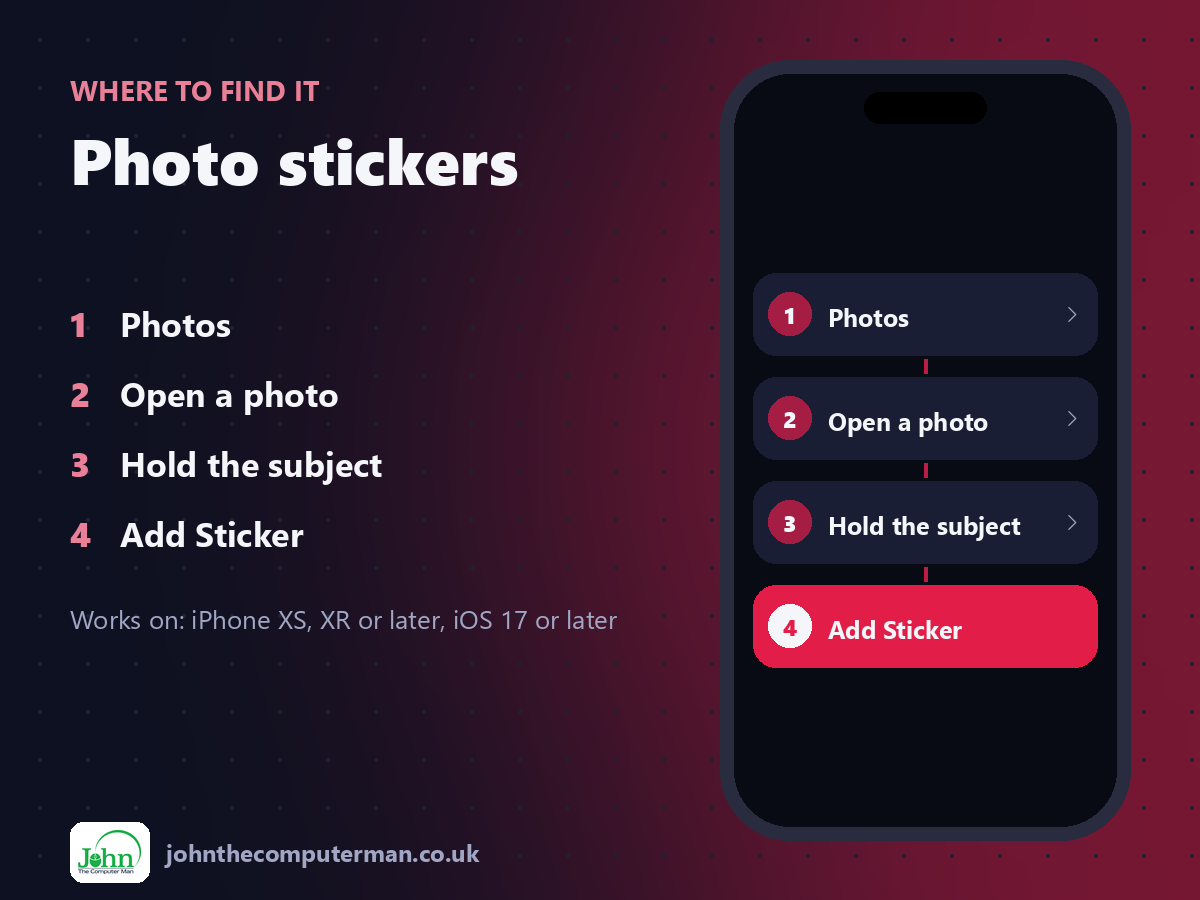
Photos > Open a photo > Hold the subject > Add Sticker
Photo stickers: step by step
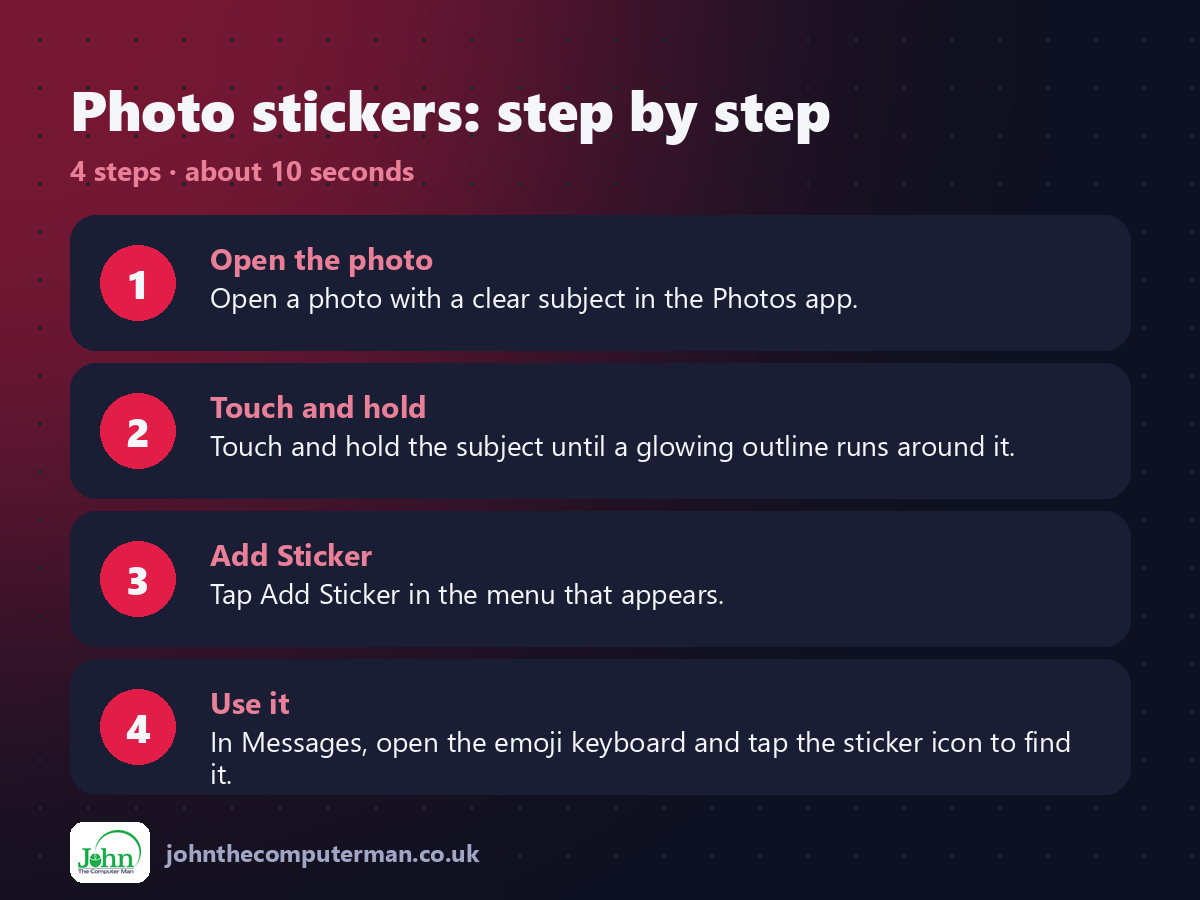
1. Open the photo. Open a photo with a clear subject in the Photos app.
2. Touch and hold. Touch and hold the subject until a glowing outline runs around it.
3. Add Sticker. Tap Add Sticker in the menu that appears.
4. Use it. In Messages, open the emoji keyboard and tap the sticker icon to find it.
2. Touch and hold. Touch and hold the subject until a glowing outline runs around it.
3. Add Sticker. Tap Add Sticker in the menu that appears.
4. Use it. In Messages, open the emoji keyboard and tap the sticker icon to find it.
Pro tip
💡 Tap Add Effect after making a sticker to give it a white outline, a comic look or a shiny finish.
More tips
• Live Photos make animated stickers.
• Instead of Add Sticker, tap Copy to paste the cut-out into another app.
• Drag a sticker onto a message bubble to stick it there.
• Photos with a clear subject and plain background work best.
• Instead of Add Sticker, tap Copy to paste the cut-out into another app.
• Drag a sticker onto a message bubble to stick it there.
• Photos with a clear subject and plain background work best.
FAQ
Where are my stickers?
In the emoji keyboard: tap the emoji button, then the sticker icon on the left.
Do stickers work in WhatsApp?
You can paste the cut-out into many apps, but saved stickers work best in Messages and Apple apps.