How to Turn On Wi-Fi Calling on iPhone for Better Signal at Home
Standing by the upstairs window to make a phone call gets old quickly.
If your home has decent Wi-Fi, your iPhone can use that for calls and texts instead of the mobile signal.
What does Wi-Fi Calling do?
Wi-Fi Calling routes your normal calls and texts over a Wi-Fi network when mobile signal is weak. You use the same number and the same Phone app, and callers notice no difference. It needs a mobile network that supports it, which most do.
Takes: 1 minute · Works on: Any recent iPhone, with a supporting mobile network · Cost: free, built into your iPhone
Where to find it
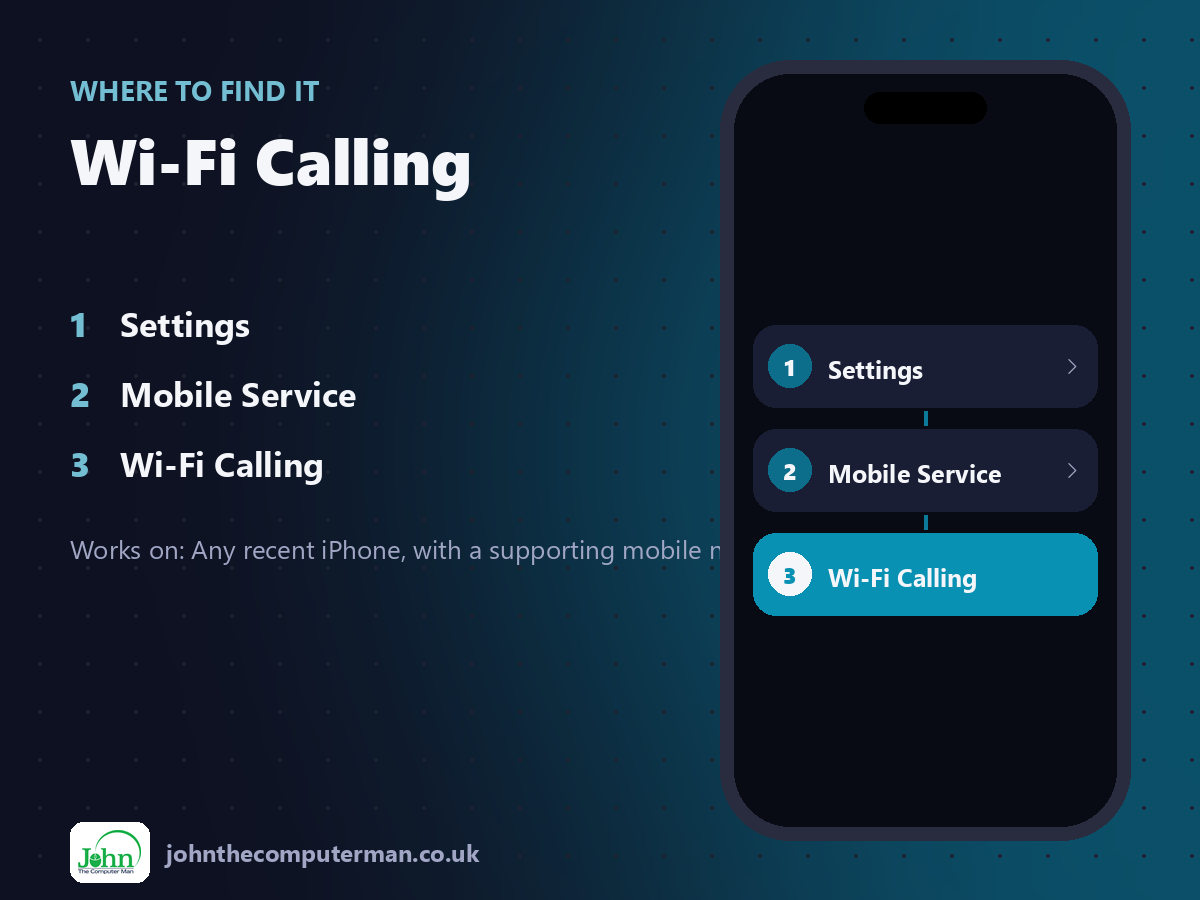
Settings > Mobile Service > Wi-Fi Calling
Wi-Fi Calling: step by step
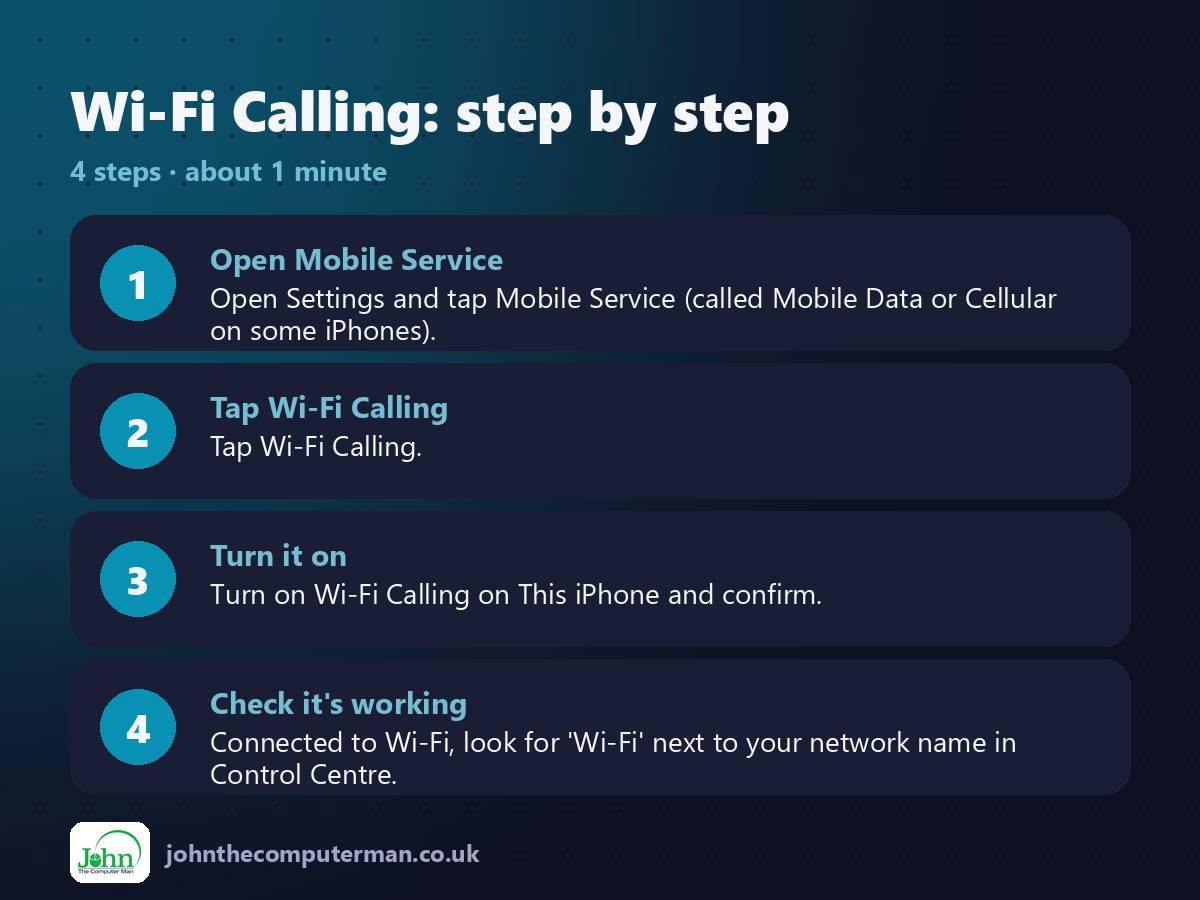
1. Open Mobile Service. Open Settings and tap Mobile Service (called Mobile Data or Cellular on some iPhones).
2. Tap Wi-Fi Calling. Tap Wi-Fi Calling.
3. Turn it on. Turn on Wi-Fi Calling on This iPhone and confirm.
4. Check it's working. Connected to Wi-Fi, look for 'Wi-Fi' next to your network name in Control Centre.
2. Tap Wi-Fi Calling. Tap Wi-Fi Calling.
3. Turn it on. Turn on Wi-Fi Calling on This iPhone and confirm.
4. Check it's working. Connected to Wi-Fi, look for 'Wi-Fi' next to your network name in Control Centre.
Pro tip
💡 Abroad, Wi-Fi Calling can be charged as if you were at home or as roaming. Check with your network before relying on it.
More tips
• Don't see the option? Your network or plan may not support it. Contact them to enable it.
• Calls made on Wi-Fi come out of your normal minutes.
• It also helps in offices, basements and thick-walled houses.
• Turn on Add Wi-Fi Calling For Other Devices to take calls on your iPad or Mac.
• Calls made on Wi-Fi come out of your normal minutes.
• It also helps in offices, basements and thick-walled houses.
• Turn on Add Wi-Fi Calling For Other Devices to take calls on your iPad or Mac.
FAQ
Is Wi-Fi Calling free?
Calls are usually charged the same as normal calls on your plan.
Does the other person need it too?
No. It works with calls to and from any phone.