How to Turn On Stolen Device Protection on iPhone (and Why You Should)
Phone thieves have a trick: watch you type your passcode in a pub or on a train, then grab the phone. With the passcode, they could change your Apple Account password and lock you out.
Stolen Device Protection closes that gap. When your iPhone is away from familiar places like home or work, the most sensitive changes need Face ID or Touch ID, and some come with an hour's delay.
What does Stolen Device Protection do?
When Stolen Device Protection is on and your iPhone is away from familiar locations, actions like viewing saved passwords or wiping the phone need Face ID or Touch ID with no passcode fallback. Bigger changes, like changing your Apple Account password, also need a one-hour security delay and a second Face ID check.
Takes: 1 minute · Works on: iOS 17.3 or later · Cost: free, built into your iPhone
Where to find it
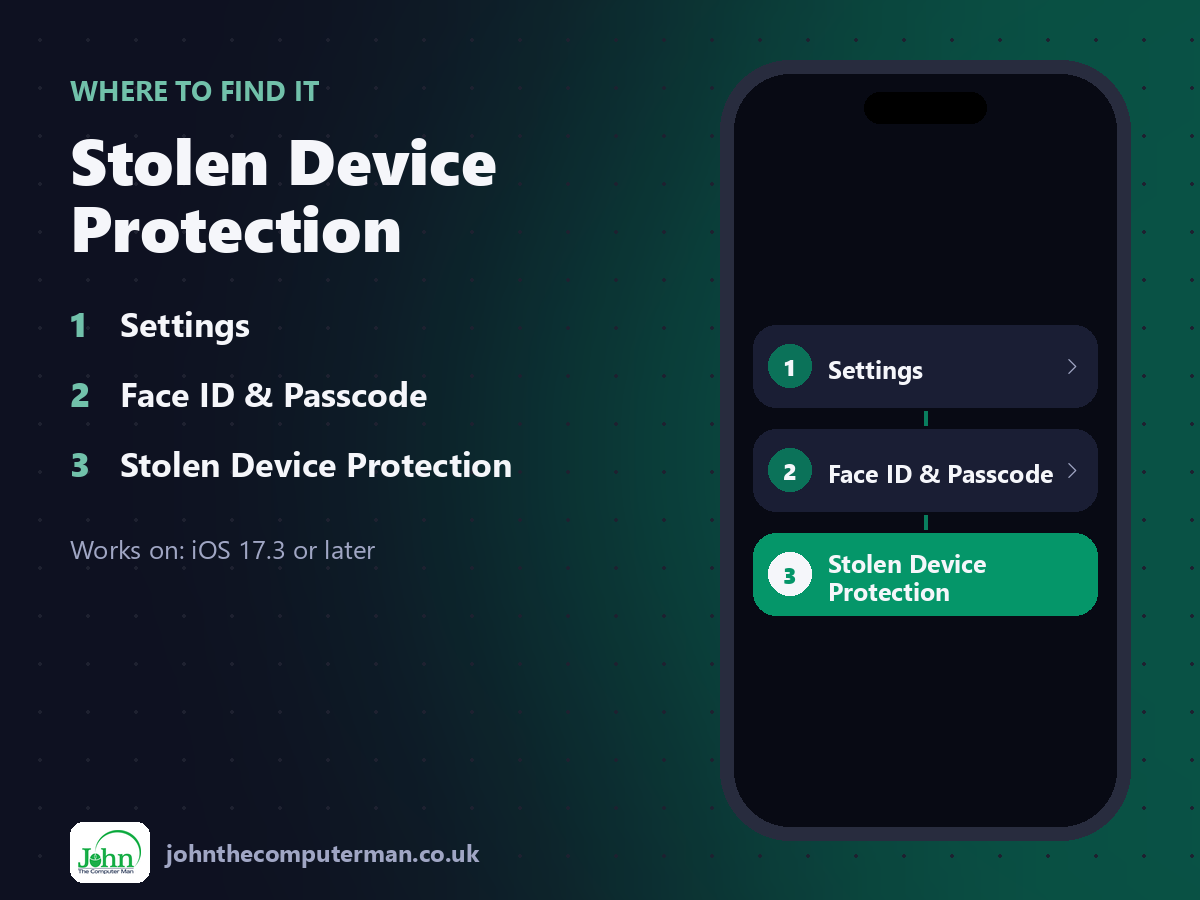
Settings > Face ID & Passcode > Stolen Device Protection
Stolen Device Protection: step by step
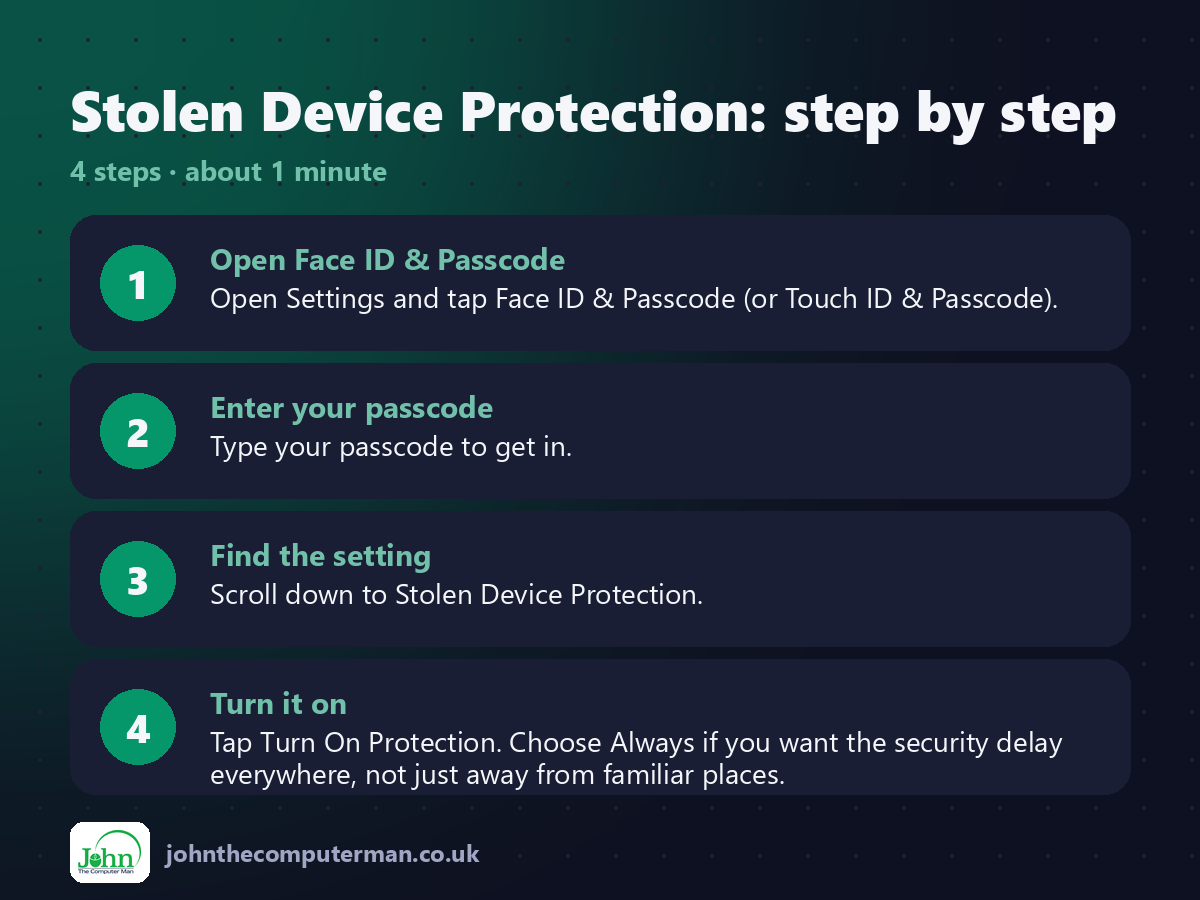
1. Open Face ID & Passcode. Open Settings and tap Face ID & Passcode (or Touch ID & Passcode).
2. Enter your passcode. Type your passcode to get in.
3. Find the setting. Scroll down to Stolen Device Protection.
4. Turn it on. Tap Turn On Protection. Choose Always if you want the security delay everywhere, not just away from familiar places.
2. Enter your passcode. Type your passcode to get in.
3. Find the setting. Scroll down to Stolen Device Protection.
4. Turn it on. Tap Turn On Protection. Choose Always if you want the security delay everywhere, not just away from familiar places.
Pro tip
💡 Check it now even if you think it's on. It needs two-factor authentication, Find My and a passcode to work.
More tips
• Make sure Find My iPhone is on: Settings > [your name] > Find My.
• Use a six-digit (or longer) passcode, and cover the screen when you type it in public.
• Familiar locations come from Significant Locations in Location Services. Leave that on for the best protection.
• If your phone is stolen, mark it as lost straight away at icloud.com/find.
• Use a six-digit (or longer) passcode, and cover the screen when you type it in public.
• Familiar locations come from Significant Locations in Location Services. Leave that on for the best protection.
• If your phone is stolen, mark it as lost straight away at icloud.com/find.
FAQ
Will this be annoying day to day?
Rarely. At home or work, nothing changes. Away from them, you'll just be asked for Face ID for a few sensitive actions.
What if Face ID doesn't work?
That's the point: the passcode alone won't do. You can still make changes once you're back somewhere familiar.