How to Turn On Find My iPhone (Before You Need It)
The moment you realise your phone isn't in your pocket is horrible. Find My can show you where it is, but only if it was switched on beforehand.
It takes a minute to check. Do it now, then you'll know exactly what to do if it ever goes missing.
What does Find My iPhone do?
Find My iPhone shows your phone's location on a map, plays a sound to help you find it, and lets you mark it as lost or erase it remotely. With Find My network turned on, it can be found even when it's offline, using nearby Apple devices.
Takes: 1 minute · Works on: Any iPhone · Cost: free, built into your iPhone
Where to find it
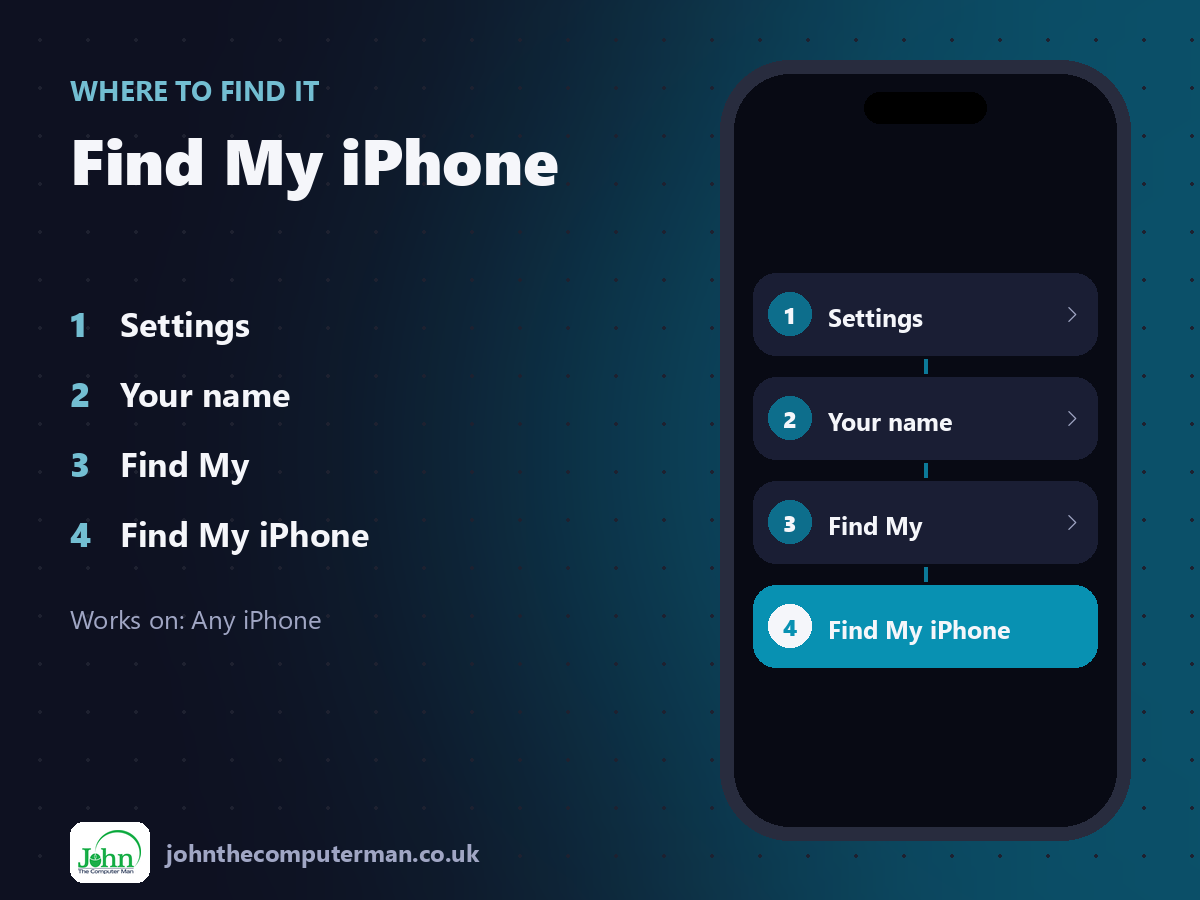
Settings > Your name > Find My > Find My iPhone
Find My iPhone: step by step
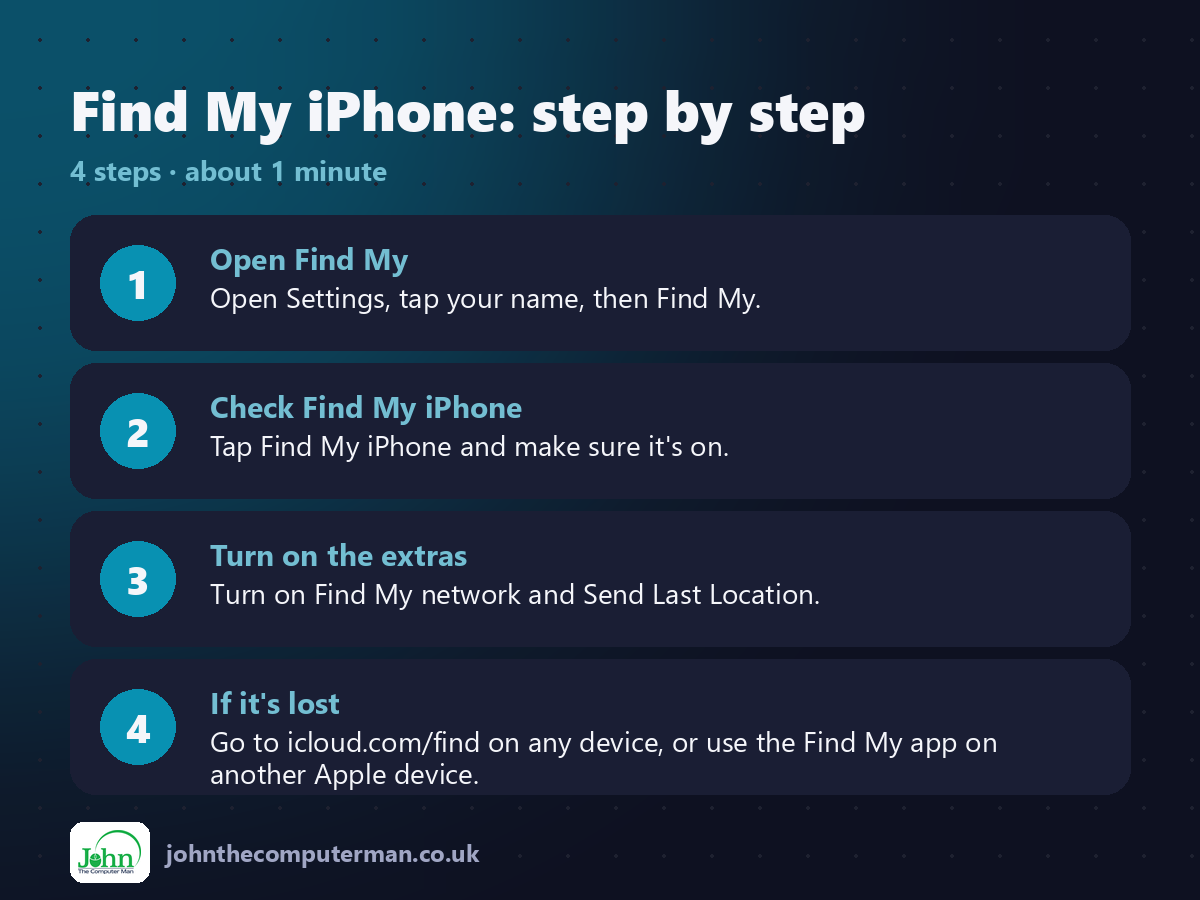
1. Open Find My. Open Settings, tap your name, then Find My.
2. Check Find My iPhone. Tap Find My iPhone and make sure it's on.
3. Turn on the extras. Turn on Find My network and Send Last Location.
4. If it's lost. Go to icloud.com/find on any device, or use the Find My app on another Apple device.
2. Check Find My iPhone. Tap Find My iPhone and make sure it's on.
3. Turn on the extras. Turn on Find My network and Send Last Location.
4. If it's lost. Go to icloud.com/find on any device, or use the Find My app on another Apple device.
Pro tip
💡 Lost it? Mark it as Lost straight away. It locks the phone, shows your message on screen and suspends Apple Pay.
More tips
• Share your location with family so they can help find your phone too.
• Erasing the phone is a last resort. You can't locate it afterwards.
• Activation Lock stops anyone else using your iPhone without your Apple Account password.
• Report a stolen phone to the police and your mobile network as well.
• Erasing the phone is a last resort. You can't locate it afterwards.
• Activation Lock stops anyone else using your iPhone without your Apple Account password.
• Report a stolen phone to the police and your mobile network as well.
FAQ
Can I find my iPhone if it's switched off?
Often, yes. With the Find My network on, recent iPhones can be found for a while after being switched off.
Can I find it from an Android or PC?
Yes. Go to icloud.com/find in any web browser and sign in.