How to Sign a PDF on iPhone Without Printing It
Someone emails you a form to sign. The old way: print it, sign it, scan it, email it back. If you even have a printer.
Your iPhone can do the whole thing in under a minute with Markup, and it saves your signature for next time.
What does Sign a PDF do?
Markup is the built-in tool for drawing and writing on documents and photos. It can save your signature, drawn with your finger, and drop it onto any PDF. You can also add text, dates and ticks to fill in forms.
Takes: 1 minute · Works on: Any iPhone · Cost: free, built into your iPhone
Where to find it
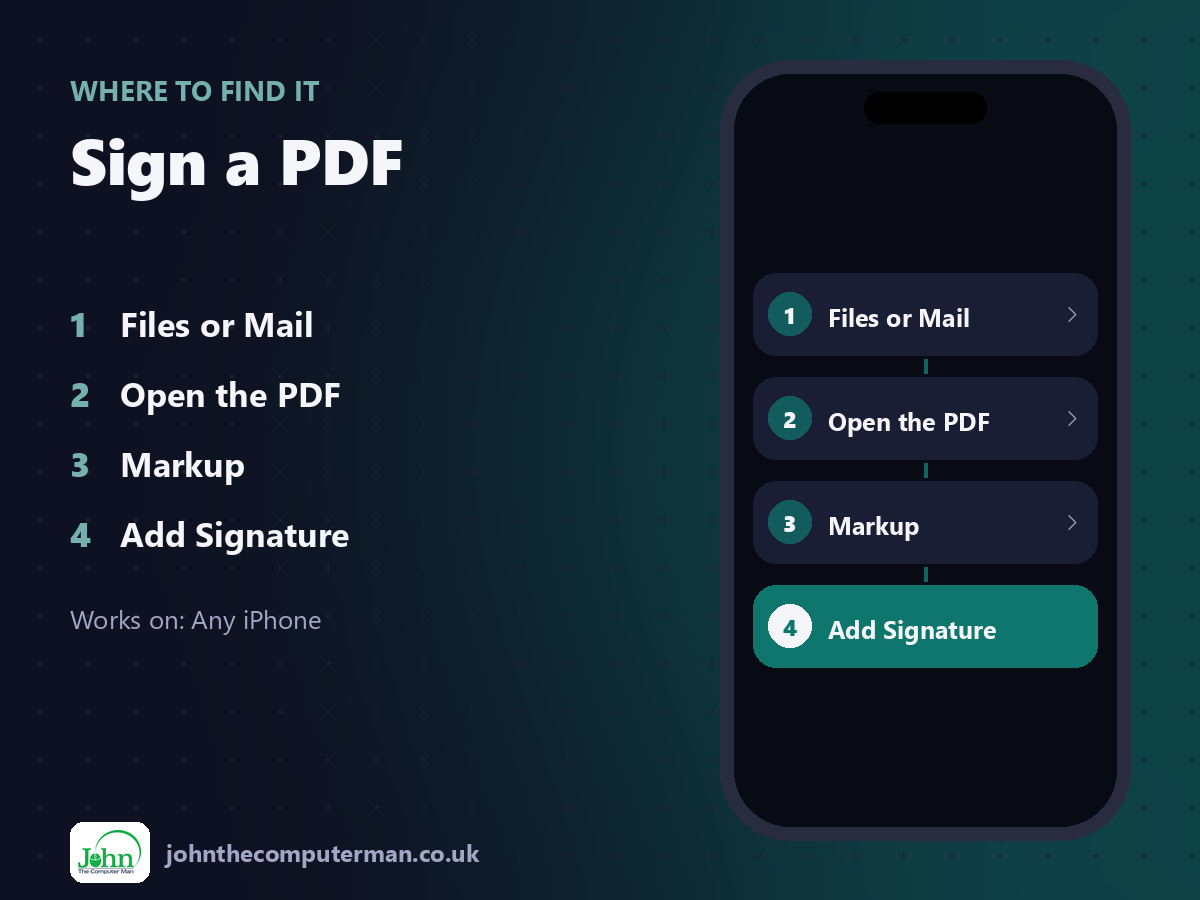
Files or Mail > Open the PDF > Markup > Add Signature
Sign a PDF: step by step
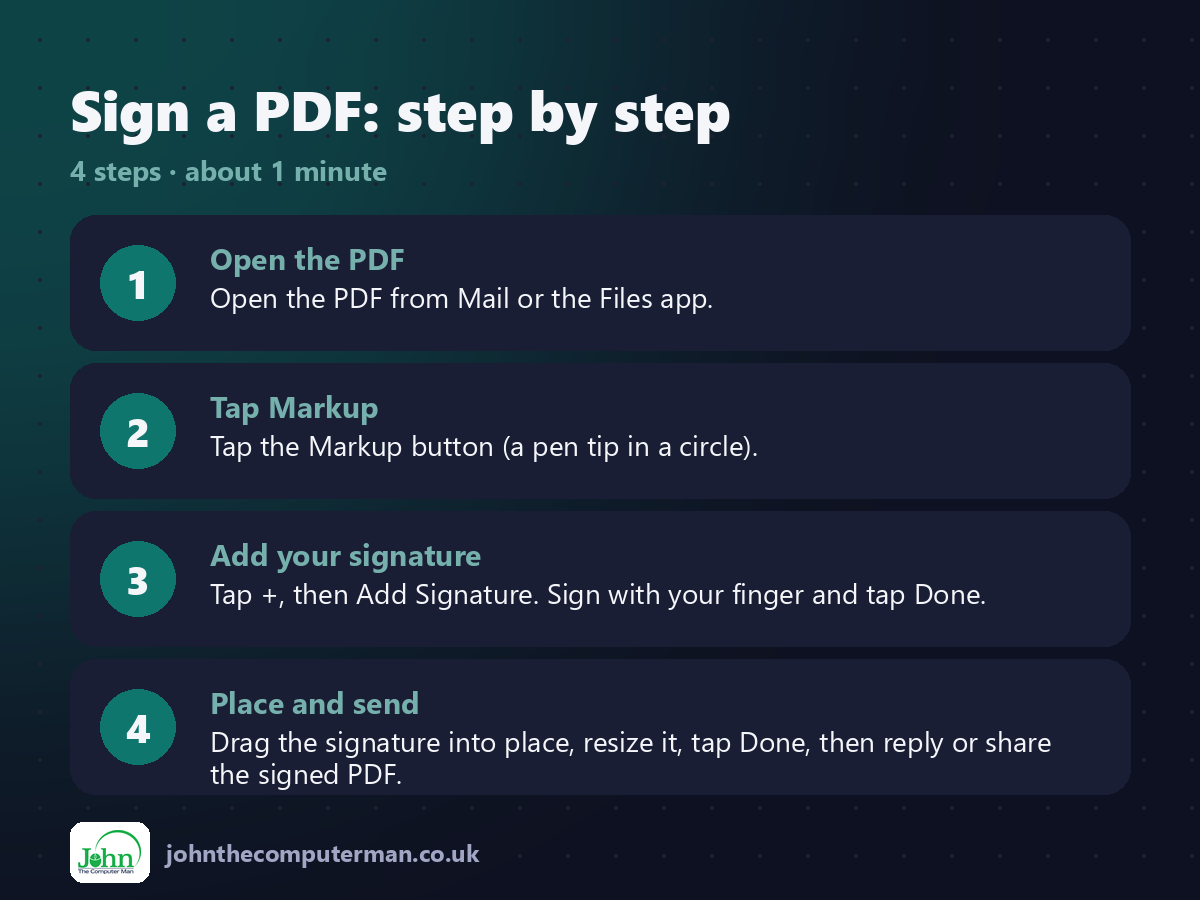
1. Open the PDF. Open the PDF from Mail or the Files app.
2. Tap Markup. Tap the Markup button (a pen tip in a circle).
3. Add your signature. Tap +, then Add Signature. Sign with your finger and tap Done.
4. Place and send. Drag the signature into place, resize it, tap Done, then reply or share the signed PDF.
2. Tap Markup. Tap the Markup button (a pen tip in a circle).
3. Add your signature. Tap +, then Add Signature. Sign with your finger and tap Done.
4. Place and send. Drag the signature into place, resize it, tap Done, then reply or share the signed PDF.
Pro tip
💡 Tap + and choose Add Text or Add Form Box to type your name, the date and other details on the form.
More tips
• Your signature is saved, so next time it's two taps.
• Turn your iPhone sideways for more room to sign.
• In Mail, tap the attachment, sign it, then tap Done and choose Reply All.
• Many PDF forms have fields you can simply tap and type into.
• Turn your iPhone sideways for more room to sign.
• In Mail, tap the attachment, sign it, then tap Done and choose Reply All.
• Many PDF forms have fields you can simply tap and type into.
FAQ
Is a finger signature legally valid?
For many everyday documents, yes, but some need a formal e-signature or witness. Check with whoever sent it.
Can I delete my saved signature?
Yes. Tap +, Add Signature, then manage or remove signatures.