How to Set Up Driving Focus on iPhone to Stop Texts While You Drive
A phone lighting up on the passenger seat is a temptation nobody needs at 60mph.
Driving Focus silences texts and notifications while you drive, and sends an automatic reply so people know you're on the road.
What does Driving Focus do?
Driving Focus is a Focus mode for the car. It silences or limits notifications, can read replies with Siri, and sends an auto-reply to people who message you. It can switch on by itself when your iPhone detects driving or connects to your car.
Takes: 2 minutes · Works on: iOS 15 or later · Cost: free, built into your iPhone
Where to find it
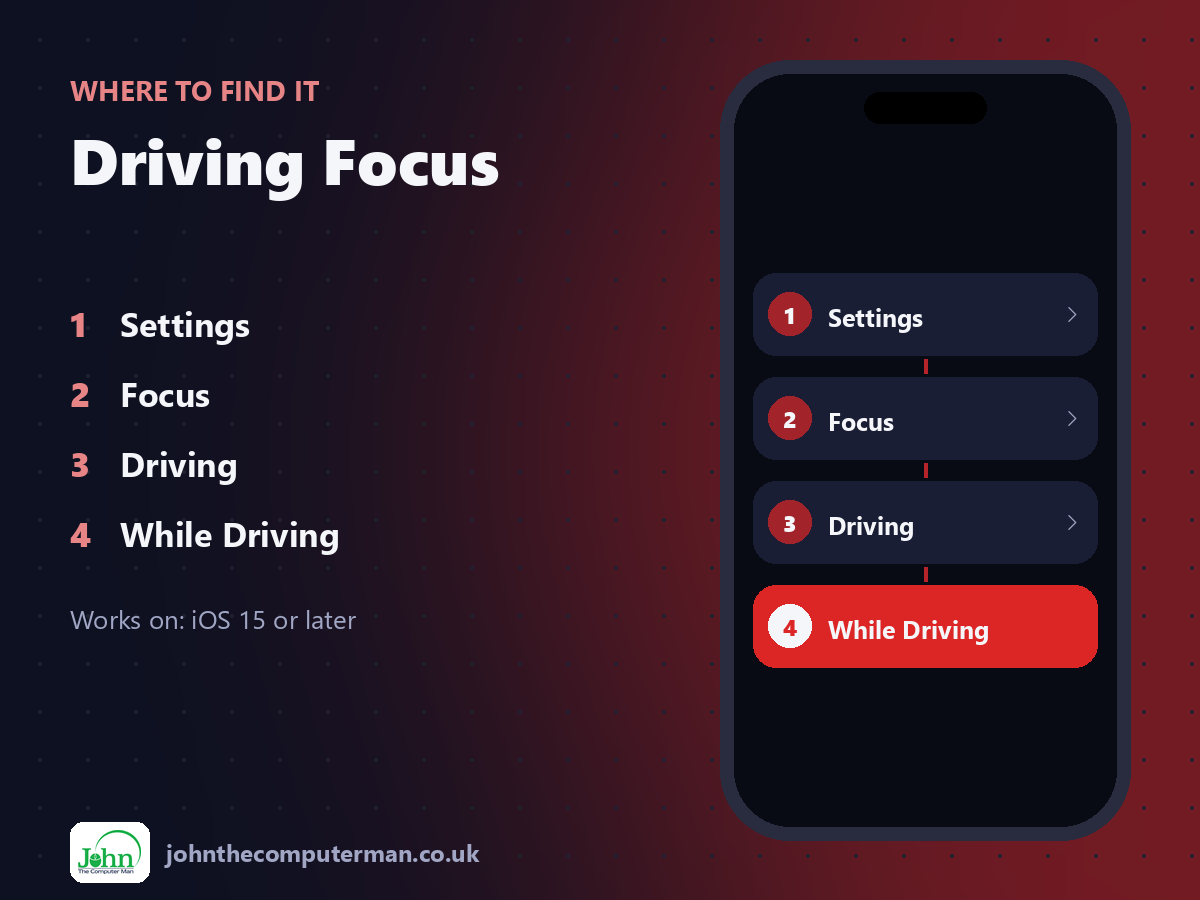
Settings > Focus > Driving > While Driving
Driving Focus: step by step
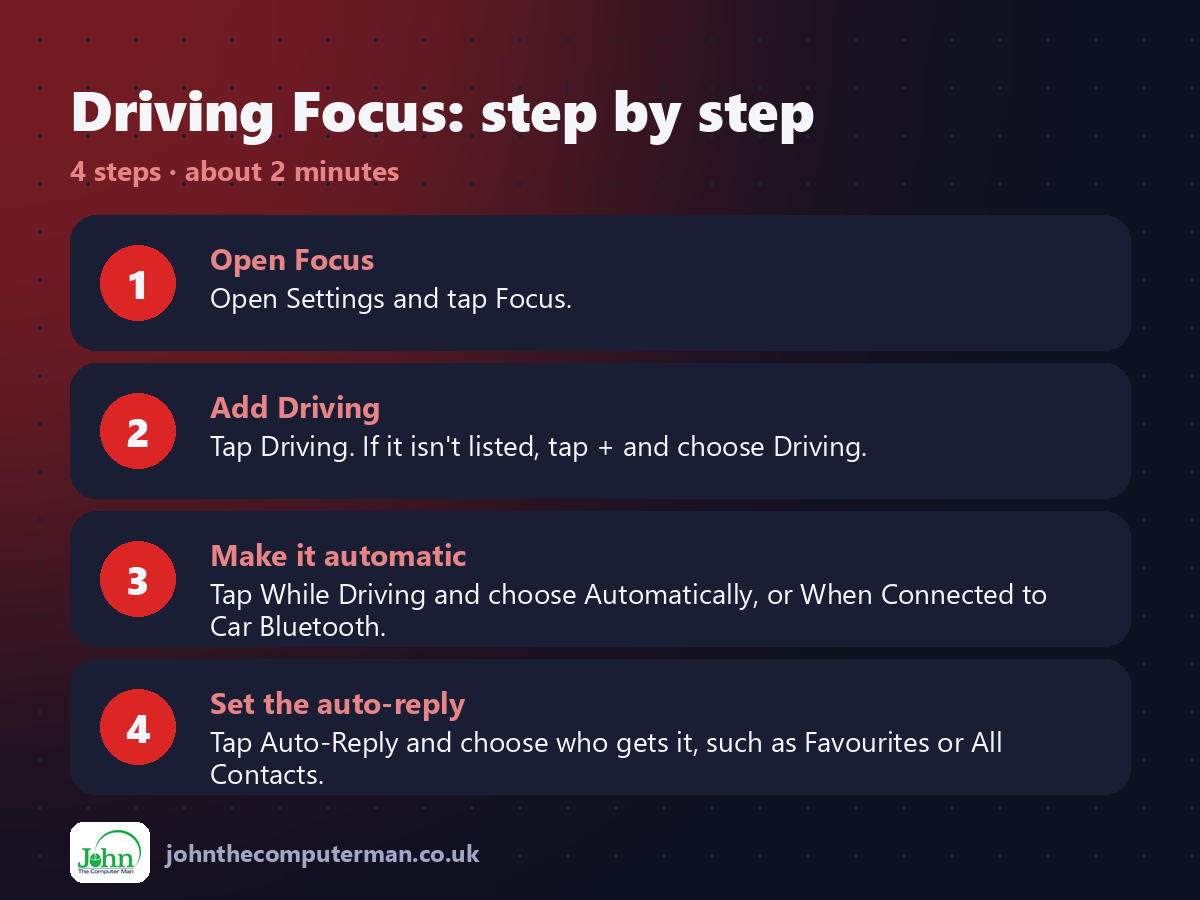
1. Open Focus. Open Settings and tap Focus.
2. Add Driving. Tap Driving. If it isn't listed, tap + and choose Driving.
3. Make it automatic. Tap While Driving and choose Automatically, or When Connected to Car Bluetooth.
4. Set the auto-reply. Tap Auto-Reply and choose who gets it, such as Favourites or All Contacts.
2. Add Driving. Tap Driving. If it isn't listed, tap + and choose Driving.
3. Make it automatic. Tap While Driving and choose Automatically, or When Connected to Car Bluetooth.
4. Set the auto-reply. Tap Auto-Reply and choose who gets it, such as Favourites or All Contacts.
Pro tip
💡 Someone can break through by sending 'urgent' as a second message. Tell family so they know how to reach you.
More tips
• Passenger? Tap the notification and choose I'm Not Driving.
• Calls still come through to CarPlay or a hands-free kit.
• Edit the auto-reply message to say what you like.
• Maps directions still work as normal.
• Calls still come through to CarPlay or a hands-free kit.
• Edit the auto-reply message to say what you like.
• Maps directions still work as normal.
FAQ
Will I miss emergency calls?
Calls come through if you're connected to CarPlay or hands-free, and repeated calls from the same person can break through.
Why does it turn on when I'm on a train?
Automatic detection can mistake other transport for driving. Tap I'm Not Driving, or switch to the car Bluetooth option.