How to Record Your iPhone Screen (With Sound)

Explaining to a relative where a setting is over the phone can take twenty minutes. Showing them takes twenty seconds.
Your iPhone can record a video of its own screen, with your voice explaining as you go.
What does Screen recording do?
Screen Recording captures everything on your screen as a video and saves it to Photos. You can record with the microphone on to talk over it, then trim the video and send it like any other.
Takes: 1 minute · Works on: iOS 11 or later · Cost: free, built into your iPhone
Where to find it
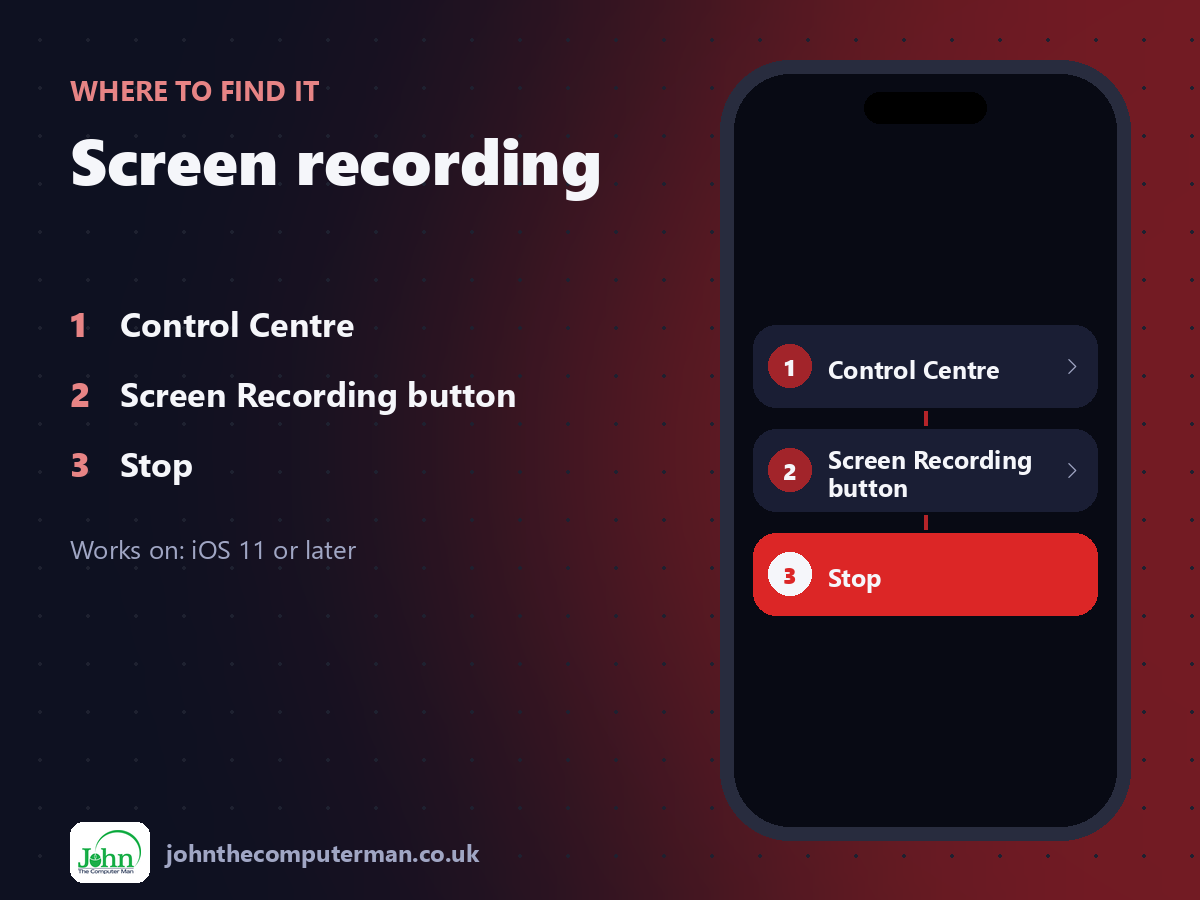
Control Centre > Screen Recording button > Stop
Screen recording: step by step
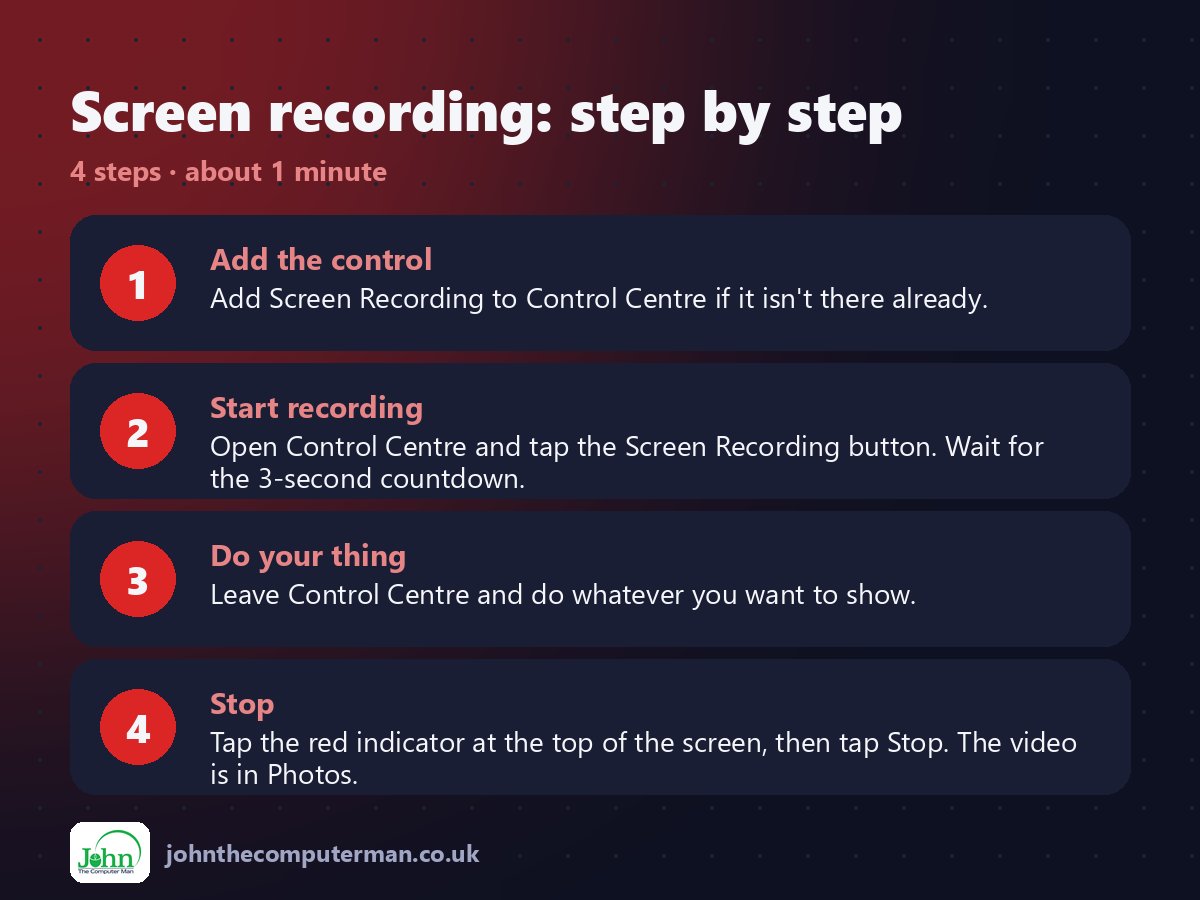
1. Add the control. Add Screen Recording to Control Centre if it isn't there already.
2. Start recording. Open Control Centre and tap the Screen Recording button. Wait for the 3-second countdown.
3. Do your thing. Leave Control Centre and do whatever you want to show.
4. Stop. Tap the red indicator at the top of the screen, then tap Stop. The video is in Photos.
2. Start recording. Open Control Centre and tap the Screen Recording button. Wait for the 3-second countdown.
3. Do your thing. Leave Control Centre and do whatever you want to show.
4. Stop. Tap the red indicator at the top of the screen, then tap Stop. The video is in Photos.
Pro tip
💡 Want your voice on it? Touch and hold the Screen Recording button and turn the Microphone on first.
More tips
• Turn on a Focus first so notifications don't pop up in your recording.
• Trim the start and end in Photos with Edit.
• Some apps, like streaming and banking apps, block screen recording.
• Be careful not to record passwords or private messages.
• Trim the start and end in Photos with Edit.
• Some apps, like streaming and banking apps, block screen recording.
• Be careful not to record passwords or private messages.
FAQ
Where do screen recordings go?
To the Photos app, in your library and under Media Types > Screen Recordings.
Does it record sound?
It records sound from apps. Your own voice is only recorded if you turn the microphone on.