How to Lock Your iPhone to One App With Guided Access
You hand your phone to a child to watch a video. Two minutes later, they've messaged your boss and deleted three apps.
Guided Access locks your iPhone to one app until you enter a passcode. You can even disable parts of the screen.
What does Guided Access do?
Guided Access is an accessibility feature that keeps your iPhone in a single app. The Home Screen, notifications and app switching are blocked until you triple-click the side button and enter a passcode. You can also disable touch on parts of the screen, and set a time limit.
Takes: 2 minutes · Works on: Any iPhone · Cost: free, built into your iPhone
Where to find it
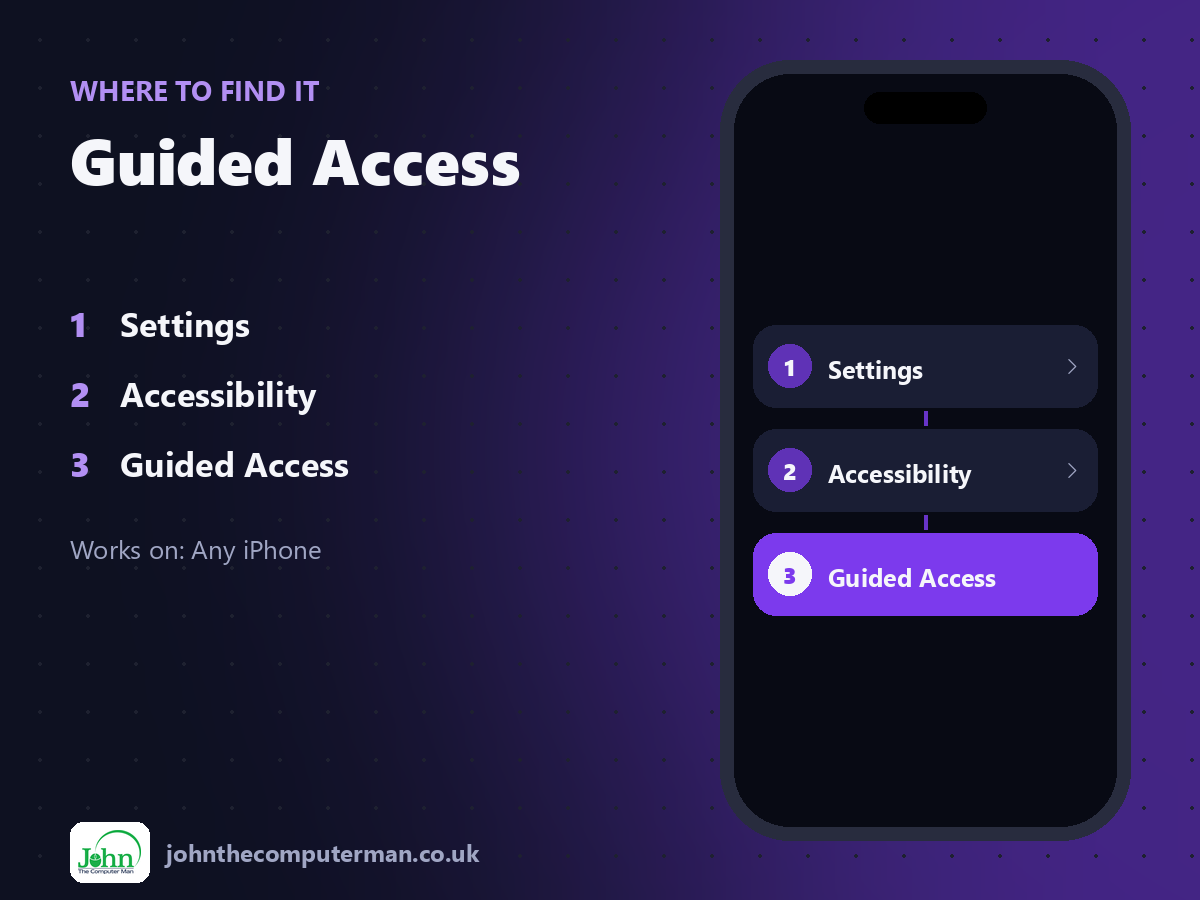
Settings > Accessibility > Guided Access
Guided Access: step by step
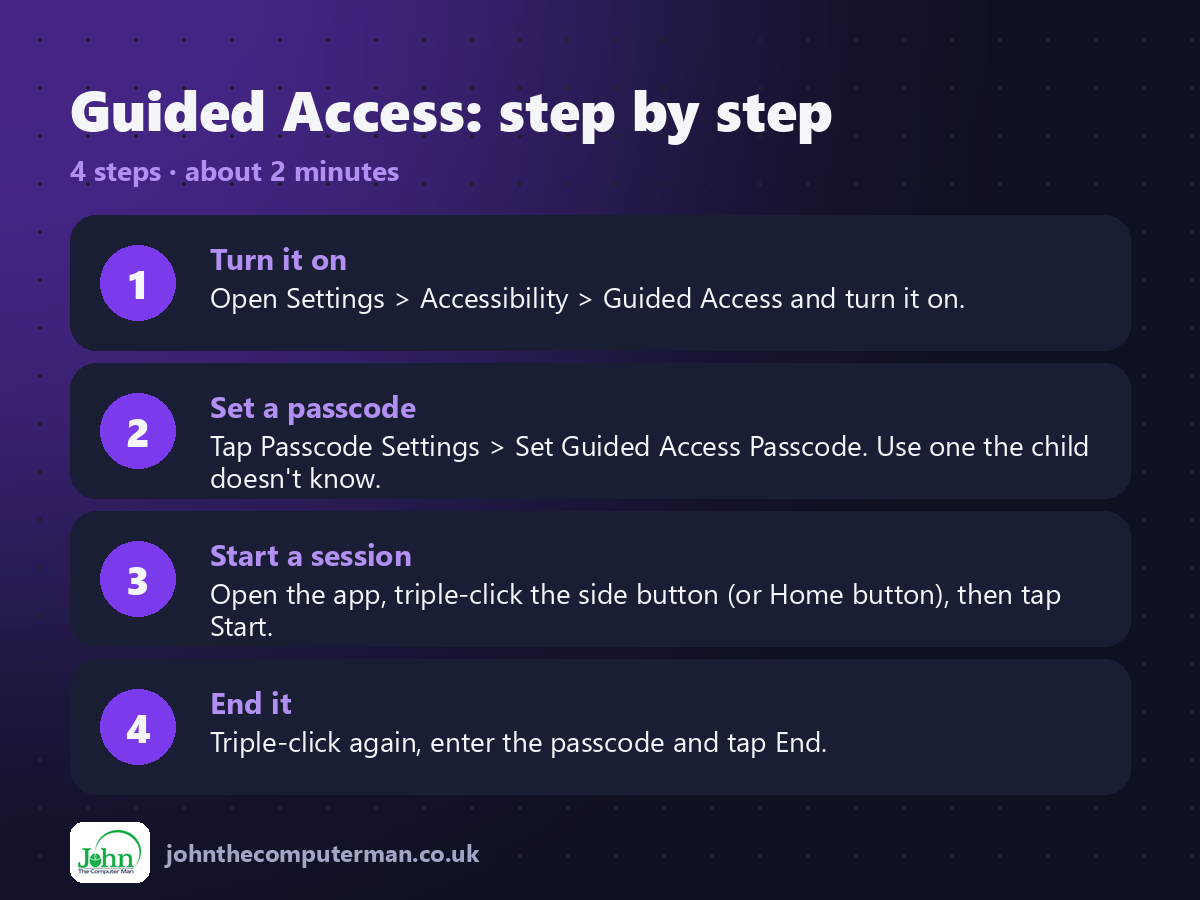
1. Turn it on. Open Settings > Accessibility > Guided Access and turn it on.
2. Set a passcode. Tap Passcode Settings > Set Guided Access Passcode. Use one the child doesn't know.
3. Start a session. Open the app, triple-click the side button (or Home button), then tap Start.
4. End it. Triple-click again, enter the passcode and tap End.
2. Set a passcode. Tap Passcode Settings > Set Guided Access Passcode. Use one the child doesn't know.
3. Start a session. Open the app, triple-click the side button (or Home button), then tap Start.
4. End it. Triple-click again, enter the passcode and tap End.
Pro tip
💡 Before tapping Start, draw a circle round any buttons you want to disable, like 'Buy' or links to other videos.
More tips
• Tap Options before starting to set a time limit, or disable volume buttons.
• Also handy when showing someone a photo, so they can't swipe to the next ones.
• Use Face ID to end a session instead of the passcode.
• For longer-term controls, set up Screen Time with Family Sharing.
• Also handy when showing someone a photo, so they can't swipe to the next ones.
• Use Face ID to end a session instead of the passcode.
• For longer-term controls, set up Screen Time with Family Sharing.
FAQ
What if I forget the passcode?
If you set Face ID or Touch ID for Guided Access, use that. Otherwise, force restart the iPhone to exit.
Can calls still come in?
Yes, calls still ring during Guided Access, but the child can't open other apps.