How to Find and Cancel Subscriptions on iPhone
A free trial you forgot to cancel, an app you used once, a game your child signed up for. Small monthly charges add up quietly.
Your iPhone lists every subscription billed through Apple in one place, with the price and next payment date.
What does Cancel subscriptions do?
The Subscriptions screen shows all active and expired subscriptions billed through your Apple Account: apps, Apple services and more. You can cancel any of them in two taps, and you keep access until the end of the period you've paid for.
Takes: 2 minutes · Works on: Any iPhone · Cost: free, built into your iPhone
Where to find it
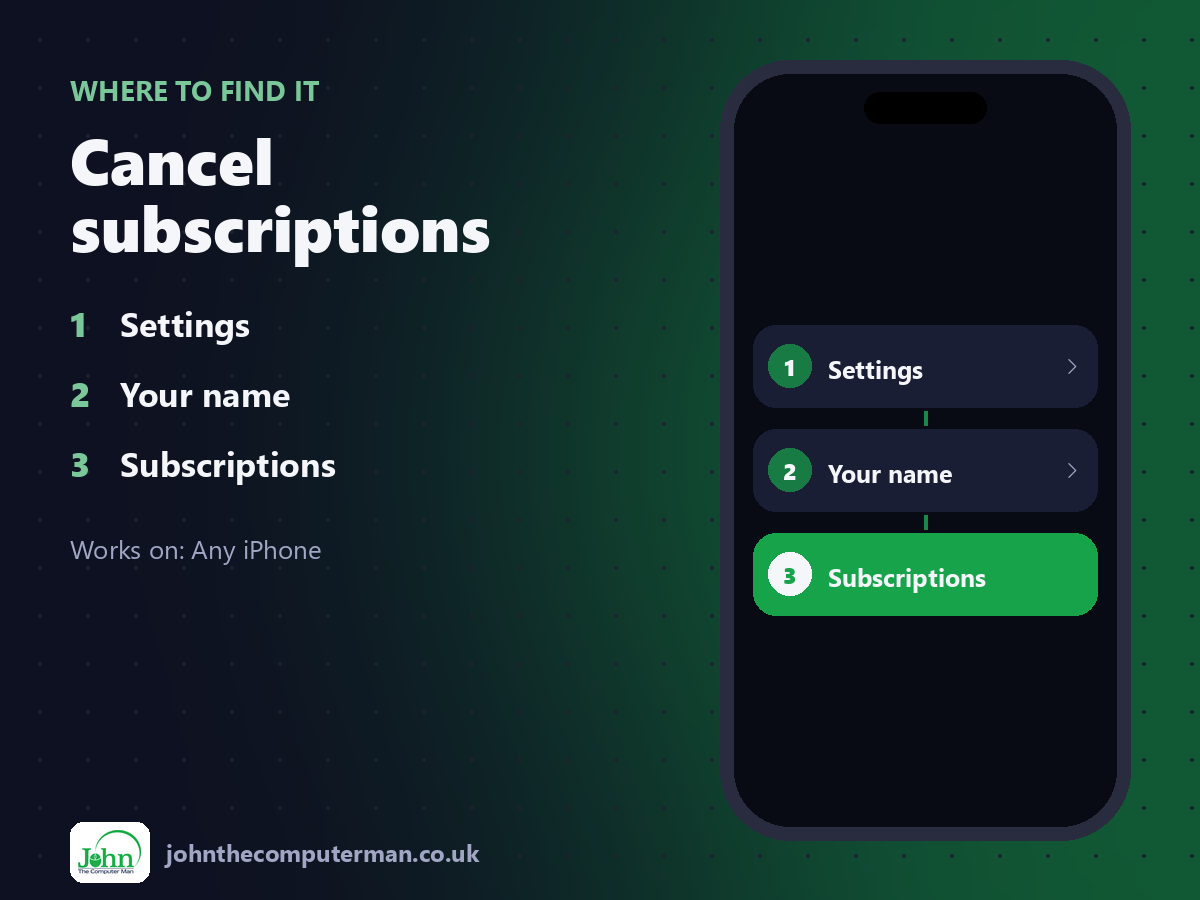
Settings > Your name > Subscriptions
Cancel subscriptions: step by step
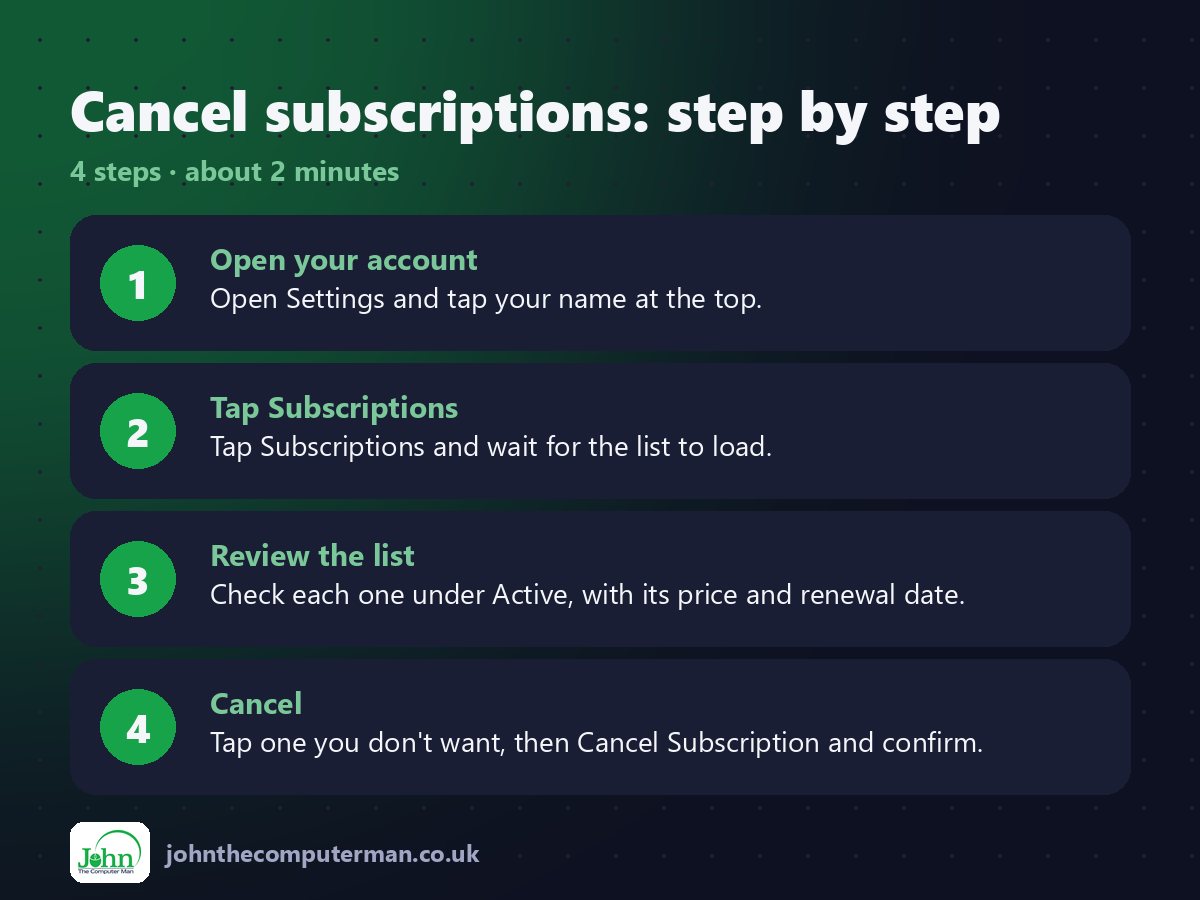
1. Open your account. Open Settings and tap your name at the top.
2. Tap Subscriptions. Tap Subscriptions and wait for the list to load.
3. Review the list. Check each one under Active, with its price and renewal date.
4. Cancel. Tap one you don't want, then Cancel Subscription and confirm.
2. Tap Subscriptions. Tap Subscriptions and wait for the list to load.
3. Review the list. Check each one under Active, with its price and renewal date.
4. Cancel. Tap one you don't want, then Cancel Subscription and confirm.
Pro tip
💡 Set a reminder for the day before a free trial ends. Some trials stop the moment you cancel, so check the wording first.
More tips
• Turn on Renewal Receipts on the same screen to get an email before each payment.
• Subscriptions bought directly from a company's website won't appear here. Check your bank statement too.
• Charged for something by mistake? Request a refund at reportaproblem.apple.com.
• Check Family Sharing: some subscriptions can be shared rather than paid for twice.
• Subscriptions bought directly from a company's website won't appear here. Check your bank statement too.
• Charged for something by mistake? Request a refund at reportaproblem.apple.com.
• Check Family Sharing: some subscriptions can be shared rather than paid for twice.
FAQ
Do I lose access straight away?
Usually not. You keep access until the end of the current billing period.
Why can't I see a subscription?
It may be billed directly by the company, or under a different Apple Account.