How to Create a Shared Album on iPhone for Family Photos
After a wedding, a holiday or a birthday, everyone has different photos, and they end up scattered across three group chats.
A Shared Album puts them all in one place. Everyone you invite can see the photos, add their own, and like and comment.
What does Shared Albums do?
Shared Albums let you share photos and videos with people you choose. Invited people can add their own, comment and like. Shared Albums don't count against your iCloud storage, though photos are saved at a slightly reduced size.
Takes: 2 minutes · Works on: Any iPhone with iCloud · Cost: free, built into your iPhone
Where to find it
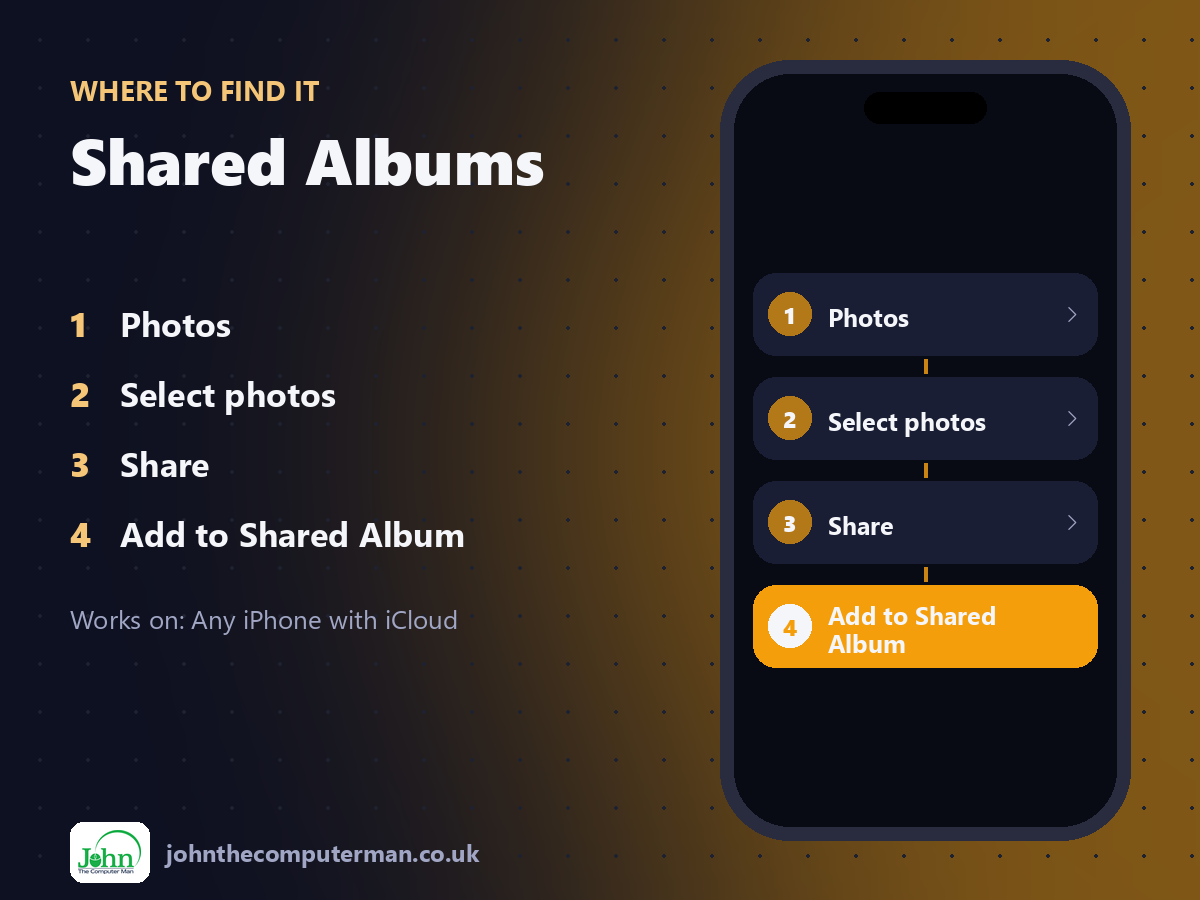
Photos > Select photos > Share > Add to Shared Album
Shared Albums: step by step
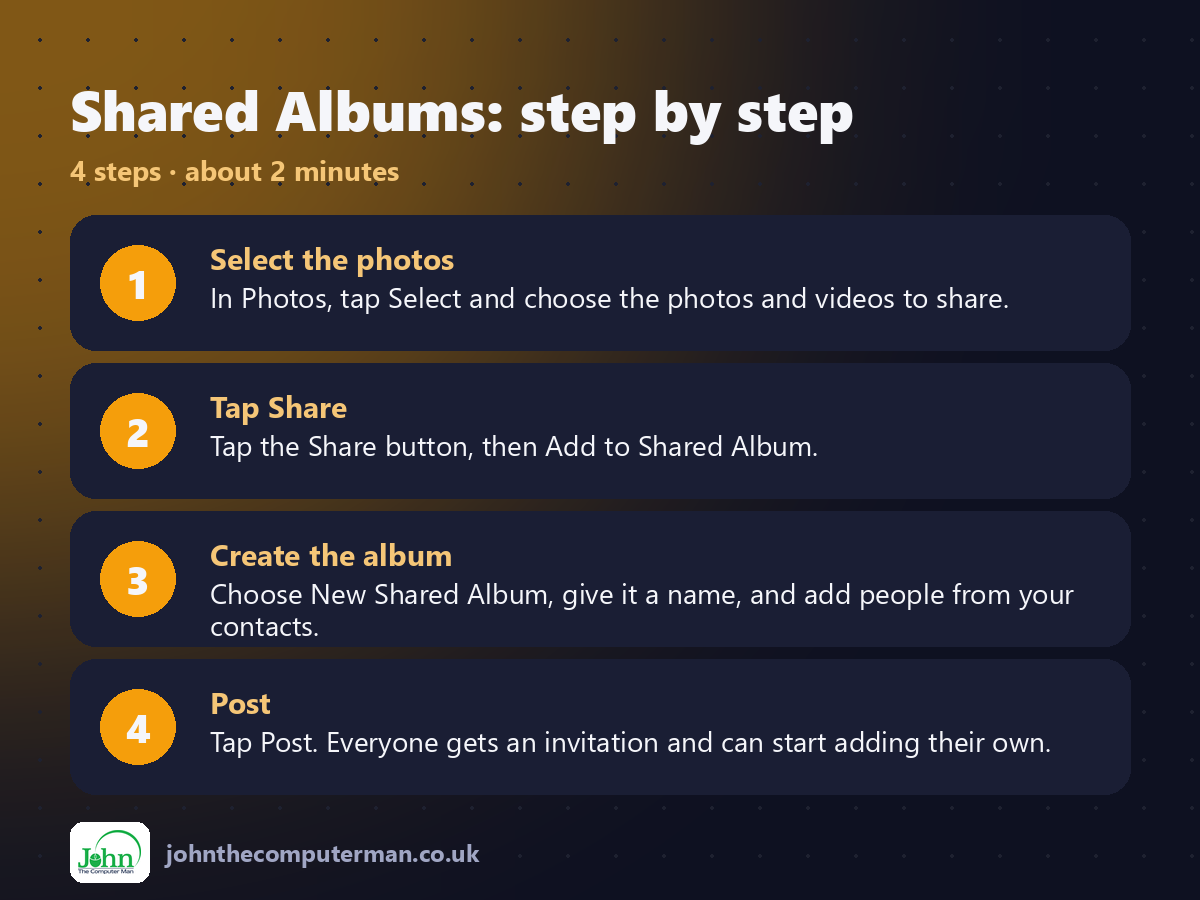
1. Select the photos. In Photos, tap Select and choose the photos and videos to share.
2. Tap Share. Tap the Share button, then Add to Shared Album.
3. Create the album. Choose New Shared Album, give it a name, and add people from your contacts.
4. Post. Tap Post. Everyone gets an invitation and can start adding their own.
2. Tap Share. Tap the Share button, then Add to Shared Album.
3. Create the album. Choose New Shared Album, give it a name, and add people from your contacts.
4. Post. Tap Post. Everyone gets an invitation and can start adding their own.
Pro tip
💡 Sharing with someone without an iPhone? Turn on Public Website in the album's settings to get a link anyone can view.
More tips
• If you don't see the option, turn on Shared Albums in Settings > [your name] > iCloud > Photos.
• Shared Albums hold up to 5,000 photos and videos.
• For full-quality sharing with close family, look at iCloud Shared Photo Library instead.
• Turn off notifications for a busy album in its settings.
• Shared Albums hold up to 5,000 photos and videos.
• For full-quality sharing with close family, look at iCloud Shared Photo Library instead.
• Turn off notifications for a busy album in its settings.
FAQ
Do Shared Albums use my iCloud storage?
No. They don't count towards your iCloud storage.
Are the photos full quality?
They're reduced slightly in size. Use AirDrop or iCloud Links when you need originals.