How to Back Up Your iPhone to iCloud (and Check It's Working)
Phones get dropped in the sea, left on trains and stolen. The phone can be replaced. Years of photos and messages can't.
iCloud Backup saves a copy of your iPhone automatically every night while it's charging and on Wi-Fi.
What does iCloud Backup do?
iCloud Backup copies your iPhone's data, settings and app data to iCloud, so you can restore everything onto a new phone. It runs automatically when your iPhone is locked, charging and connected to Wi-Fi. Your photos and messages can also sync separately with iCloud.
Takes: 2 minutes · Works on: Any iPhone · Cost: free, built into your iPhone
Where to find it
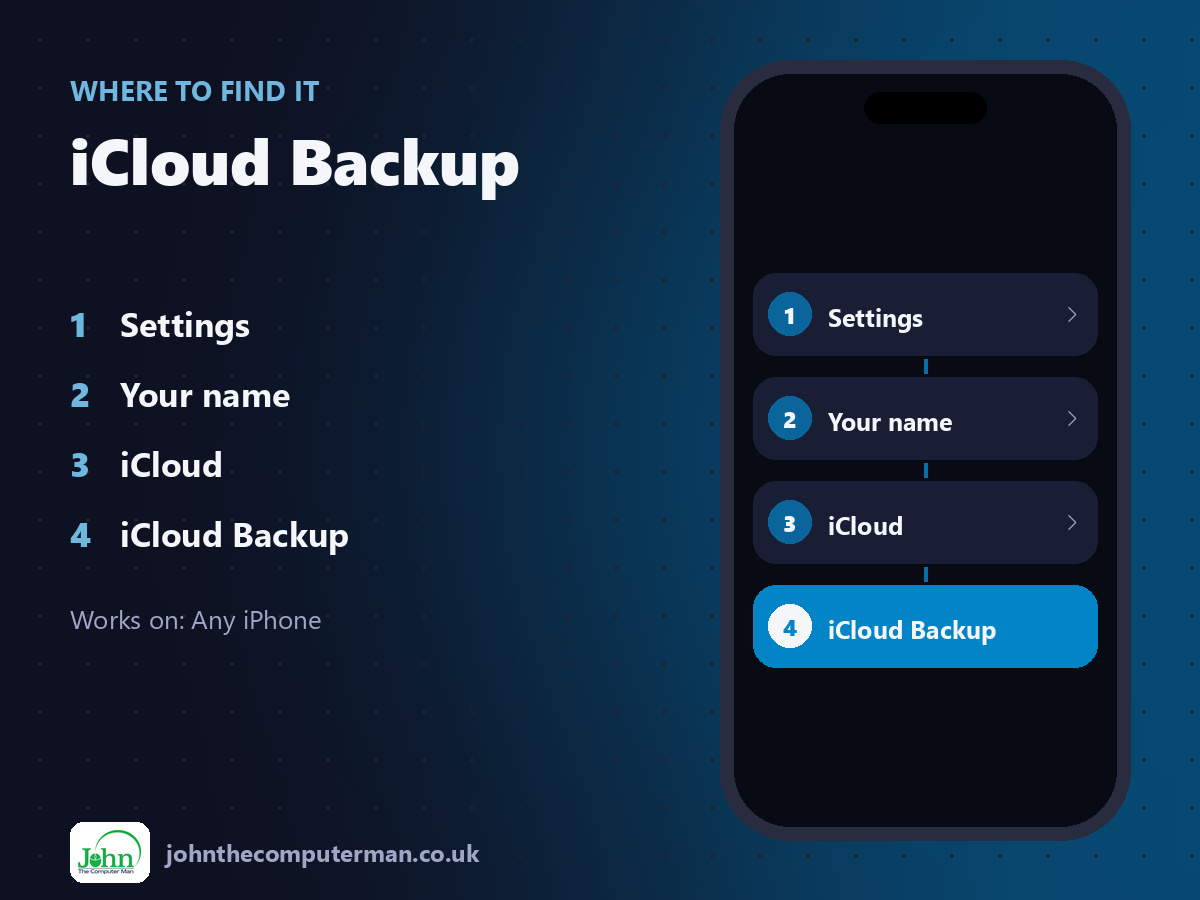
Settings > Your name > iCloud > iCloud Backup
iCloud Backup: step by step
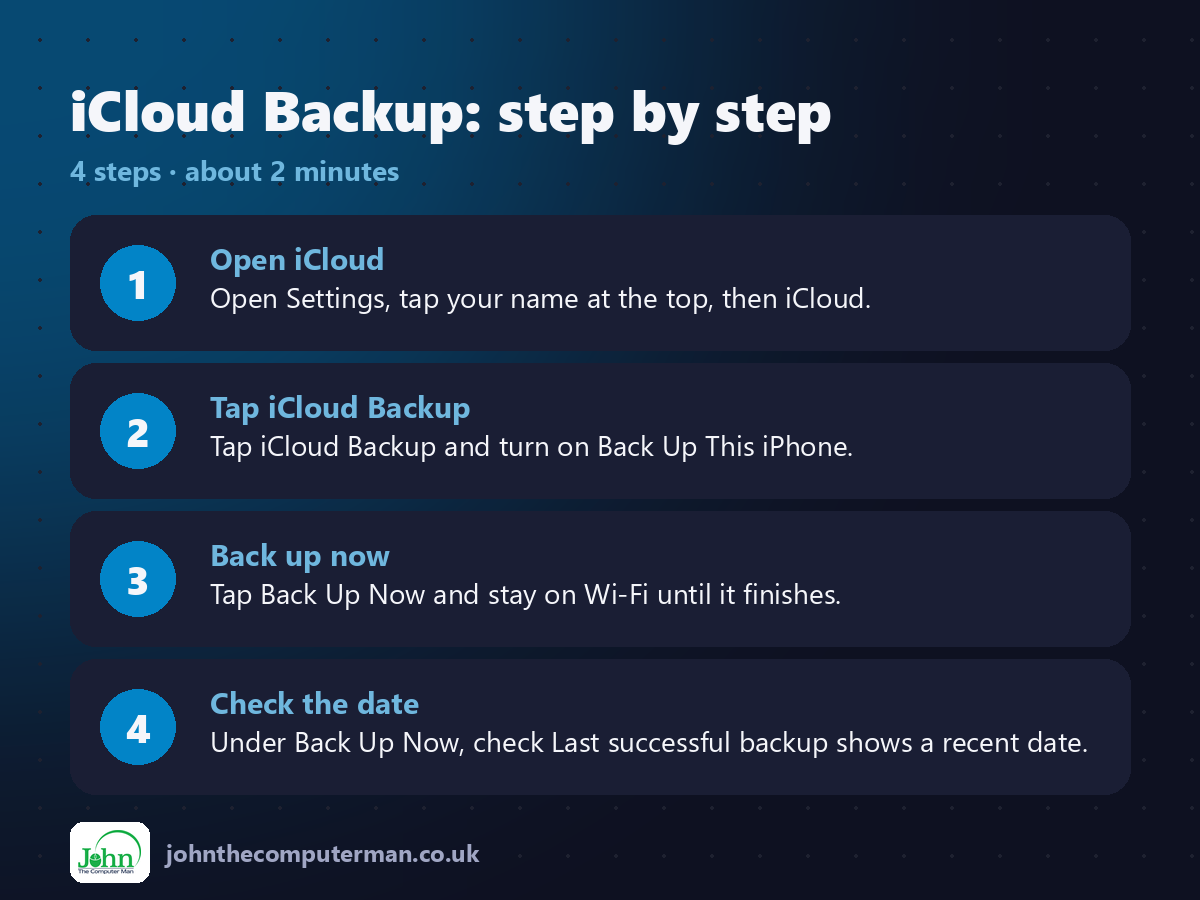
1. Open iCloud. Open Settings, tap your name at the top, then iCloud.
2. Tap iCloud Backup. Tap iCloud Backup and turn on Back Up This iPhone.
3. Back up now. Tap Back Up Now and stay on Wi-Fi until it finishes.
4. Check the date. Under Back Up Now, check Last successful backup shows a recent date.
2. Tap iCloud Backup. Tap iCloud Backup and turn on Back Up This iPhone.
3. Back up now. Tap Back Up Now and stay on Wi-Fi until it finishes.
4. Check the date. Under Back Up Now, check Last successful backup shows a recent date.
Pro tip
💡 Free iCloud is only 5GB. If backups keep failing, you may need more storage: 50GB is a small monthly cost.
More tips
• Turn on iCloud Photos to keep every photo safe in iCloud, not just in the backup.
• Check which apps are backed up in Settings > [your name] > iCloud > Manage Account Storage > Backups.
• Prefer not to pay? You can back up to a computer instead using Finder on a Mac or Apple Devices on Windows.
• Check the backup date every month or two.
• Check which apps are backed up in Settings > [your name] > iCloud > Manage Account Storage > Backups.
• Prefer not to pay? You can back up to a computer instead using Finder on a Mac or Apple Devices on Windows.
• Check the backup date every month or two.
FAQ
How often does it back up?
Every day, when your iPhone is locked, charging and on Wi-Fi.
Why won't my backup finish?
Usually not enough iCloud storage. Delete old backups or upgrade your iCloud storage.