Slow Android Phone? 5 Ways to Speed It Up
Phones do slow down over time, but usually not because they're “worn out”. It's more often a phone that's nearly full, hasn't been restarted in weeks, or is carrying dozens of apps you forgot you installed.
Before you spend money on a new one, try these five fixes in order. They're free, safe and often make an older phone feel surprisingly quick again.
Before you start: Android menus vary a little between phone makers. The steps below use Google Pixel / standard Android names, with Samsung Galaxy differences noted. If you can't find a setting, tap the search bar at the top of Settings and type its name.
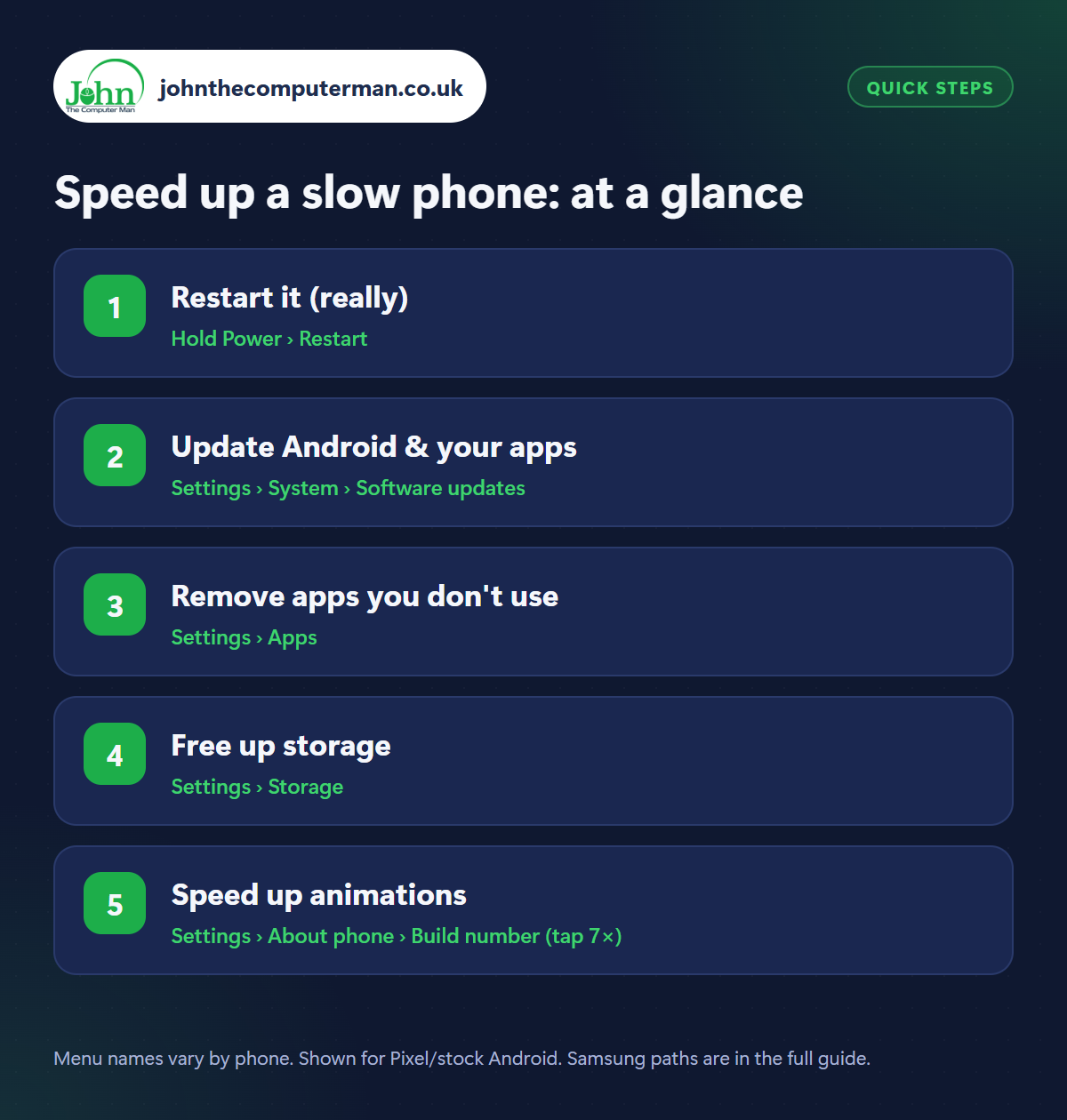
How to speed up a slow phone on Android
Step 1: Restart it (really)
Where: Hold Power › Restart
Samsung: Hold Side key + Volume Down › Restart
Samsung: Hold Side key + Volume Down › Restart
It sounds too simple, but a restart clears out stuck processes, frees memory and finishes installing updates. Hold the Power button (on many newer phones, Power + Volume Up, and on Samsung Side key + Volume Down) and tap Restart. Do it once a week. Samsung phones can do it automatically: Settings › Device care › Auto optimisation › Restart when needed.
Step 2: Update Android & your apps
Where: Settings › System › Software updates
Updates don't just add features. They fix bugs that cause lag and battery drain. Check Settings › System › Software updates (Samsung: Settings › Software update), then update your apps in the Play Store › profile › Manage apps & device › Update all. After a big update, give your phone a day. It optimises apps in the background and can feel slow until that finishes.
Step 3: Remove apps you don't use
Where: Settings › Apps
Many apps run in the background even when you're not using them, checking for updates, notifications and location. Go to Settings › Apps, look through the list and Uninstall anything you don't use. Pre-installed apps you can't uninstall can usually be Disabled instead, which stops them running entirely. Also remove live widgets you don't look at from your home screen. They update constantly.
Step 4: Free up storage
Where: Settings › Storage
When storage is nearly full, Android has no room to work with and everything slows down, from opening apps to taking photos. Aim to keep at least 10–15% free. Our guide to freeing up storage on Android walks through the quickest ways: Files by Google, Google Photos' ‘Free up space’, archiving apps and clearing cache.
Step 5: Speed up animations
Where: Settings › About phone › Build number (tap 7×)
This is the hidden trick. Go to Settings › About phone (Samsung: About phone › Software information) and tap Build number seven times until it says you're a developer. Then open Settings › System › Developer options (Samsung: at the bottom of Settings) and set Window animation scale, Transition animation scale and Animator duration scale to 0.5x. Don't change other developer settings. If you'd rather not use developer options, Settings › Accessibility › Remove animations does a similar job.
Pro tip
💡 Phone suddenly slow? Start it in Safe mode (hold Power, then long-press Power off). If it's fast there, a recently installed app is to blame.
FAQ
Do RAM booster or cleaner apps help?
No. Android manages memory itself. Booster apps often run in the background, show ads and make phones slower. Uninstall them.
Should I factory reset a slow phone?
Only as a last resort, after trying the fixes above, and only once everything is backed up. It wipes the phone completely.
Is Developer options safe?
Changing the animation scales is completely safe and easy to undo. Leave the other developer settings alone unless you know what they do.
The bottom line
Restart, update, declutter and keep storage free, and most ‘slow’ phones come back to life. The animation trick is the cherry on top: a phone that feels snappier in under a minute.