How to Use Google Password Manager and Passkeys on Android
If you use the same password (or a small variation of it) for lots of sites, one data breach is all it takes for a criminal to get into your other accounts.
Android comes with a free password manager built in, and it can now use passkeys, which let you sign in with your fingerprint instead of a password at all. Here's how to set it all up.
Before you start: Android menus vary a little between phone makers. The steps below use Google Pixel / standard Android names, with Samsung Galaxy differences noted. If you can't find a setting, tap the search bar at the top of Settings and type its name.
How to passwords & passkeys on Android
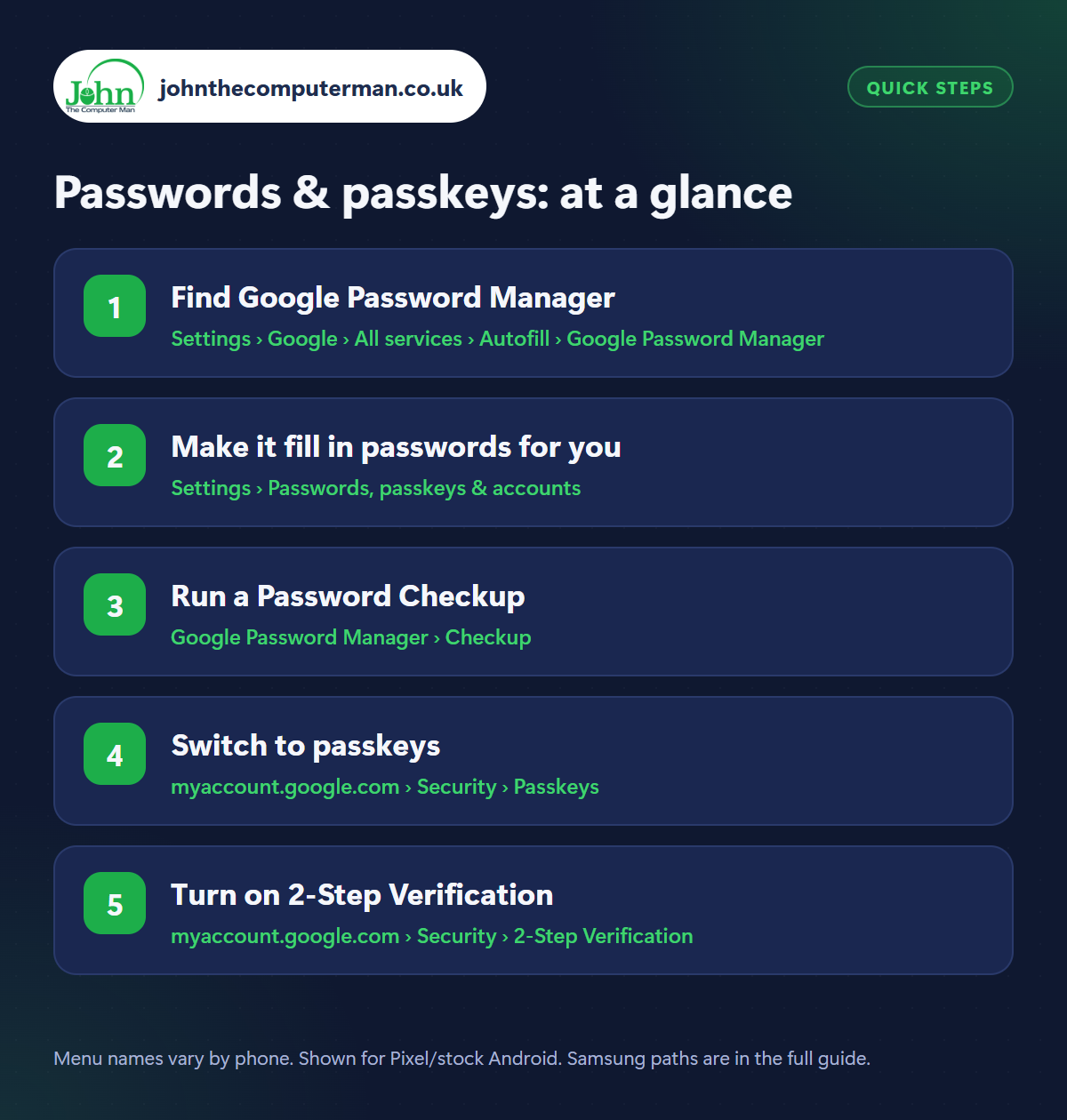
Step 1: Find Google Password Manager
Where: Settings › Google › All services › Autofill › Google Password Manager
Google Password Manager stores the passwords you save in Chrome and Android apps. Open it from Settings › Google › All services › Autofill › Google Password Manager (or search Settings for ‘Password Manager’). Tap the gear icon › Add shortcut to your home screen so it's one tap away. You can also view your passwords on a computer at passwords.google.com.
Step 2: Make it fill in passwords for you
Where: Settings › Passwords, passkeys & accounts
Samsung: Settings › General management › Passwords, passkeys and autofill
Samsung: Settings › General management › Passwords, passkeys and autofill
Go to Settings › Passwords, passkeys & accounts (Samsung: Settings › General management › Passwords, passkeys and autofill) and set Google as your preferred service. Now when you sign into an app or website, your saved password pops up above the keyboard. When you create a new account, let Chrome suggest a strong password and it'll remember it for you.
Step 3: Run a Password Checkup
Where: Google Password Manager › Checkup
In Google Password Manager, tap Checkup. It checks your saved passwords against known data breaches and flags any that are compromised, reused or weak. Start with the compromised ones. Tap Change password and it takes you to the right site. Fix your email and banking passwords first, as those protect everything else.
Step 4: Switch to passkeys
Where: myaccount.google.com › Security › Passkeys
A passkey replaces your password with your phone's fingerprint, face or screen lock. There's nothing to type, remember or be tricked into giving away. Start with your Google account: go to myaccount.google.com › Security › Passkeys and security keys and create one. Many other sites (Amazon, PayPal, eBay and more) now offer passkeys too. Look for ‘passkey’ in their security settings.
Step 5: Turn on 2-Step Verification
Where: myaccount.google.com › Security › 2-Step Verification
Your Google account holds your passwords, email and backups, so it needs the strongest protection. Go to myaccount.google.com › Security › 2-Step Verification and switch it on. Your phone will then show a Google prompt (‘Is it you trying to sign in?’) when someone signs in from a new device. Add a backup phone number and save your backup codes somewhere safe.
Pro tip
💡 Never tap ‘Yes, it's me’ on a Google sign-in prompt you weren't expecting. It means someone else has your password. Change it straight away.
FAQ
Is it safe to store passwords with Google?
Yes, for most people it's far safer than reusing passwords. Your passwords are encrypted, and you need your screen lock to view them.
What happens to my passkeys if I lose my phone?
Passkeys saved to Google Password Manager sync to your Google account, so they're available when you sign in on a new phone.
Can I use another password manager?
Yes. Apps like Bitwarden or 1Password work on Android too. Choose them as your preferred service in the same Settings menu.
The bottom line
Let Google Password Manager remember everything, run a Checkup and fix anything leaked. Then switch your Google account to a passkey. It's easier and safer than any password.