How to Scan Documents with Your Android Phone (Free)
Need to send a signed form, a receipt or a letter? You don't need a scanner, and you definitely don't need a paid scanning app.
Your Android phone can turn paper into a clean, straight, readable PDF in seconds using apps you already have. Here's how to get perfect scans every time.
Before you start: Android menus vary a little between phone makers. The steps below use Google Pixel / standard Android names, with Samsung Galaxy differences noted. If you can't find a setting, tap the search bar at the top of Settings and type its name.
How to scan documents on Android
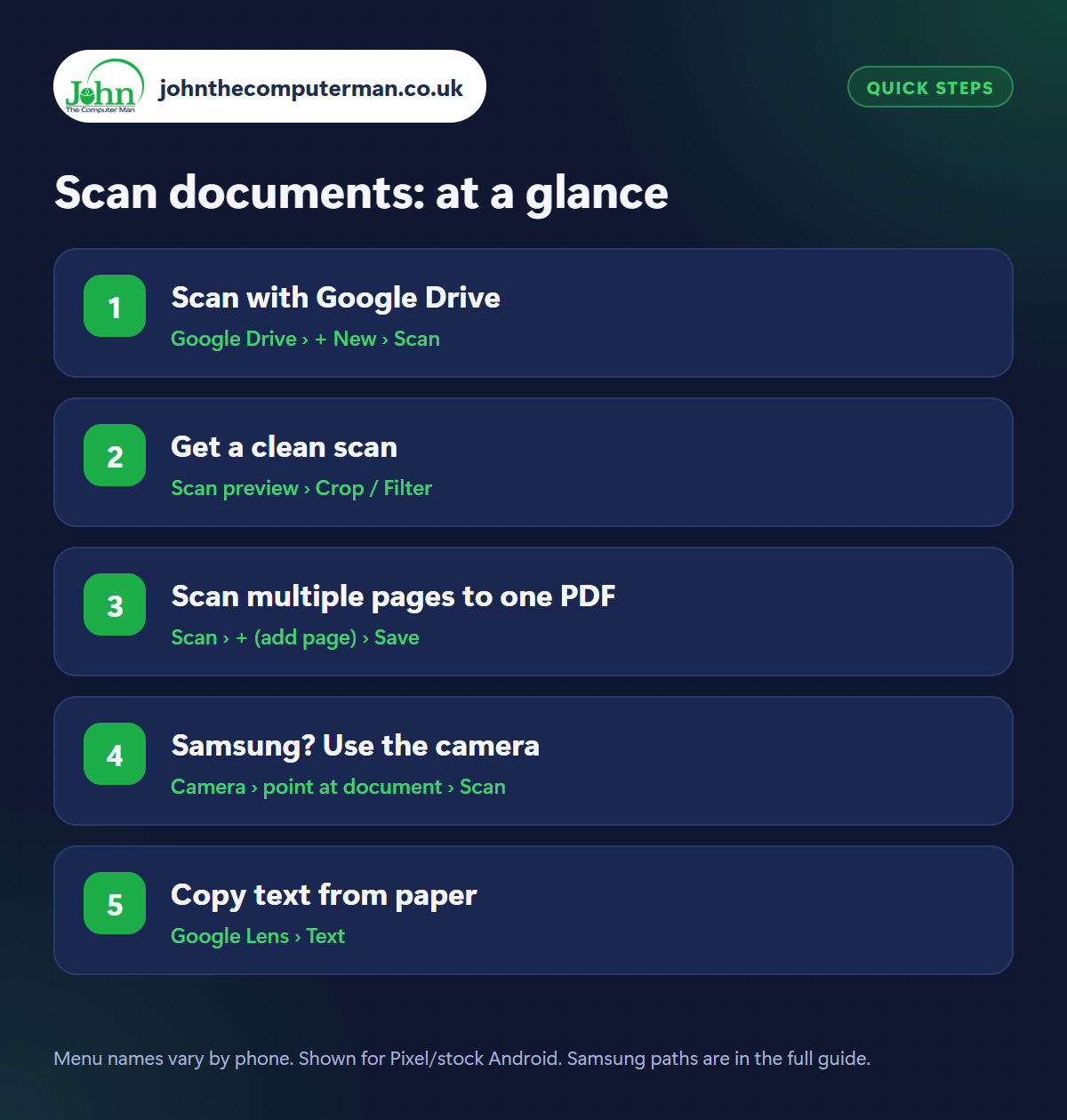
Step 1: Scan with Google Drive
Where: Google Drive › + New › Scan
Open the free Google Drive app, tap + New and choose Scan (you can also long-press the Drive icon and tap Scan). Point your camera at the document. Drive finds the edges and captures it automatically, or tap the shutter button. It straightens the page and removes the background, so it looks like it came out of a real scanner.
Step 2: Get a clean scan
Where: Scan preview › Crop / Filter
For the best results, lay the page flat on a darker surface so the edges stand out, in good, even light (near a window is ideal). Avoid your shadow falling across it. After scanning, use Crop to fix the edges, Rotate if needed and the Filter option to make text crisper. Black-and-white works well for text documents.
Step 3: Scan multiple pages to one PDF
Where: Scan › + (add page) › Save
Scanning a multi-page letter or contract? After the first page, tap + to add the next one. All pages go into one PDF. When you're done, tap Save (or Done), give it a sensible name like ‘Car insurance 2026’ and choose a Drive folder. It's backed up automatically, and you can share it by email or WhatsApp straight from Drive.
Step 4: Samsung? Use the camera
Where: Camera › point at document › Scan
Samsung Galaxy phones can scan straight from the Camera app. Point it at a document and a yellow outline and a Scan button appear. Tap it and adjust the corners. If it doesn't appear, open Camera › Settings › Intelligent features and turn on Scan documents and text (the exact name varies by model). Samsung Notes can also scan documents to PDF.
Step 5: Copy text from paper
Where: Google Lens › Text
Need the words rather than a picture? Open Google Lens (the camera icon in the Google search bar) and choose Text. Point it at the page, select the text, and tap Copy. You can paste it into an email or document, or tap Listen to hear it read aloud and Translate for foreign letters. See our guide to Circle to Search and Google Lens.
Pro tip
💡 Need to sign a PDF? Open it in Google Drive, tap the pen icon, and draw your signature with your finger, then save a copy.
FAQ
Are phone scans good enough for official documents?
Usually yes. Most companies and government services accept clear PDF scans. Make sure the whole page is in focus and nothing is cut off.
Where are my Google Drive scans saved?
In the Drive folder you chose, backed up to your Google account. They count towards your free 15 GB of storage.
Do I need a scanner app from the Play Store?
No. Google Drive and Samsung's camera do the job for free, without ads or subscriptions.
The bottom line
Google Drive's scanner gives you clean, backed-up PDFs in seconds on any Android phone. Samsung owners can scan straight from the camera. Either way, you'll never need a scanner again.
More Android tutorials: