How to Cut Your Screen Time on Android with Digital Wellbeing
Most of us pick up our phones far more than we realise, and the apps are designed to keep us scrolling.
Android has a free set of tools called Digital Wellbeing built right into Settings. It shows you exactly where your time goes and gives you gentle ways to cut back, without deleting anything.
Before you start: Android menus vary a little between phone makers. The steps below use Google Pixel / standard Android names, with Samsung Galaxy differences noted. If you can't find a setting, tap the search bar at the top of Settings and type its name.
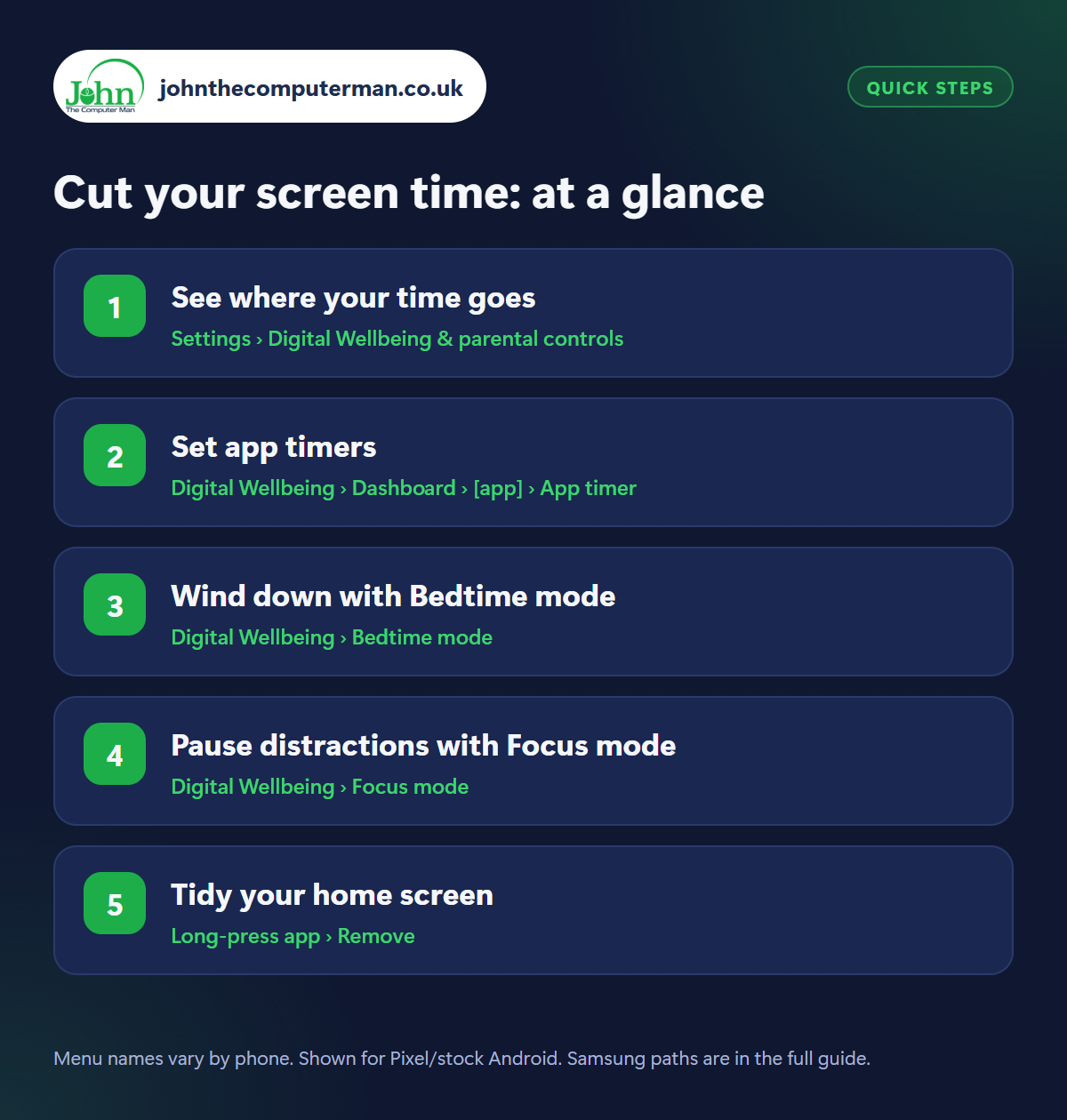
How to cut your screen time on Android
Step 1: See where your time goes
Where: Settings › Digital Wellbeing & parental controls
Samsung: Settings › Digital Wellbeing and parental controls
Samsung: Settings › Digital Wellbeing and parental controls
Open Settings › Digital Wellbeing & parental controls. The dashboard shows today's screen time, how many times you've unlocked your phone and how many notifications you've had, broken down by app. Tap the chart to see previous days. Most people are surprised. It's worth looking before you change anything so you know which apps to focus on.
Step 2: Set app timers
Where: Digital Wellbeing › Dashboard › [app] › App timer
From the dashboard, tap an app you spend too long in, then App timer and choose a daily limit, say 30 minutes. When you hit it, the app's icon turns grey and it's paused until midnight. You can remove the timer if you really need it, but that extra step is often enough to break the habit of opening it without thinking.
Step 3: Wind down with Bedtime mode
Where: Digital Wellbeing › Bedtime mode
Samsung: Settings › Modes and Routines › Sleep
Samsung: Settings › Modes and Routines › Sleep
Bedtime mode turns on at the time you choose (or when your phone is charging at night). It switches the screen to greyscale, dims the wallpaper and turns on Do Not Disturb. A black-and-white screen is surprisingly boring, which is the point. On Samsung, set this up in Settings › Modes and Routines › Sleep.
Step 4: Pause distractions with Focus mode
Where: Digital Wellbeing › Focus mode
Samsung: Settings › Modes and Routines › Work
Samsung: Settings › Modes and Routines › Work
Focus mode lets you choose your most distracting apps (social media, news, games) and pause them all at once with one tap or on a schedule, like weekday working hours. You can take a 5-minute break if you need to. Add the Focus mode tile to Quick Settings for one-tap access. Samsung phones use Modes and Routines for the same thing.
Step 5: Tidy your home screen
Where: Long-press app › Remove
A simple one that works: long-press your most time-consuming apps on the home screen and choose Remove (this only removes the shortcut, not the app). You can still find them in the app drawer, but you won't open them on autopilot every time you unlock. Put useful apps like Maps, Calendar and Camera on the home screen instead.
Pro tip
💡 Add the Digital Wellbeing screen-time widget to your home screen. Seeing the number every time you unlock is a powerful nudge.
FAQ
Can I use Digital Wellbeing for my child's phone?
Yes. Use the parental controls in the same menu, which set up Google Family Link so you can set limits and approve apps from your own phone.
Does Bedtime mode block calls?
It turns on Do Not Disturb, which you can set to let calls from starred contacts and repeat callers through.
Why don't I see Digital Wellbeing?
Most Android phones have it in Settings. If yours doesn't, search Settings for ‘screen time’ or install Digital Wellbeing from the Play Store.
The bottom line
Start by just looking at your dashboard for a week. Then add an app timer to your biggest time-sink and turn on Bedtime mode. Small changes add up fast.