How to Customise Your Android Home Screen (5 Easy Ideas)
One of the best things about Android is that you can make your phone look exactly how you want, not just how it came out of the box.
You don't need to install anything. Everything below is built in and only takes a few minutes. Start by long-pressing an empty space on your home screen. That's where almost all of it lives.
Before you start: Android menus vary a little between phone makers. The steps below use Google Pixel / standard Android names, with Samsung Galaxy differences noted. If you can't find a setting, tap the search bar at the top of Settings and type its name.
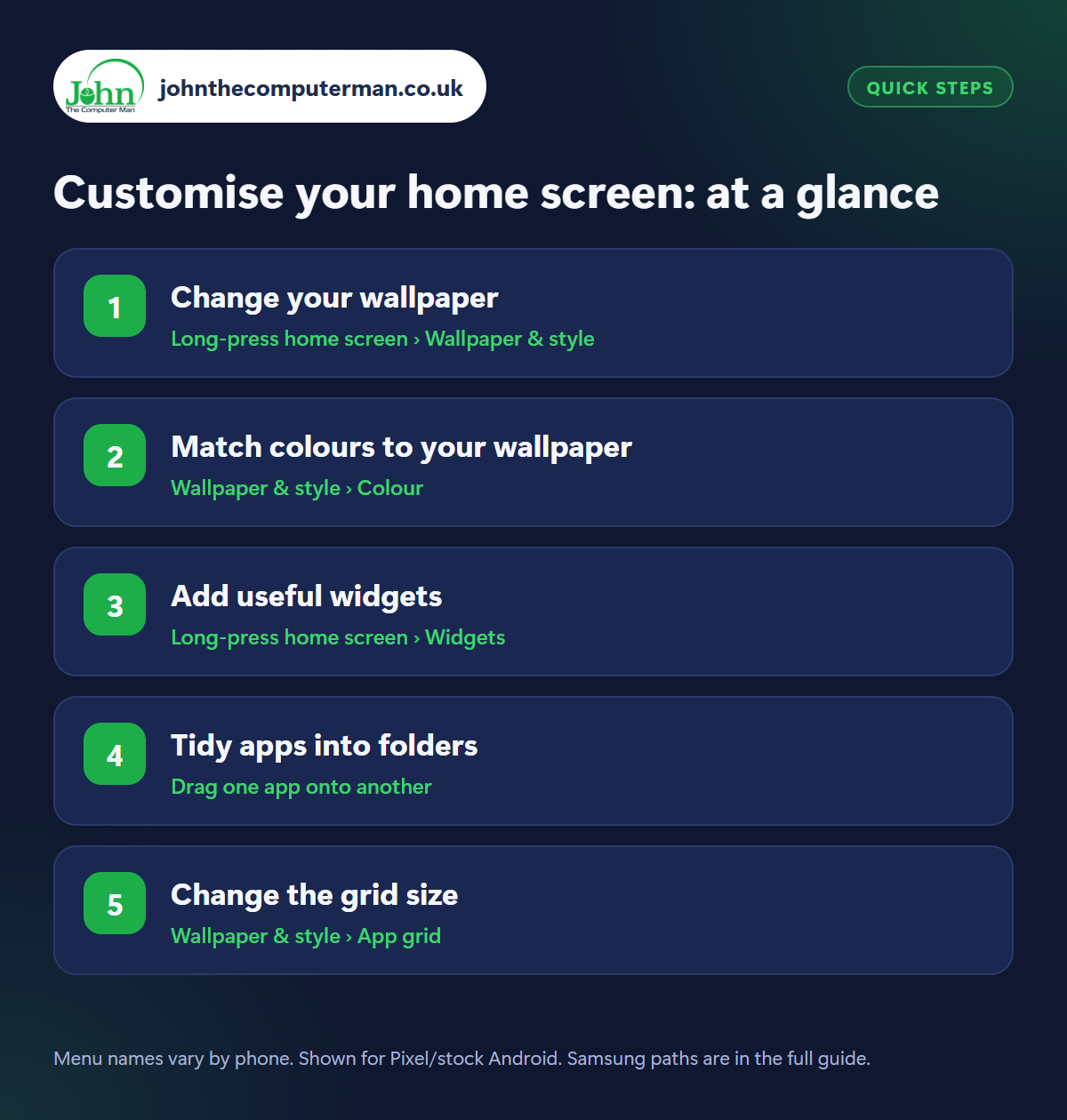
How to customise your home screen on Android
Step 1: Change your wallpaper
Where: Long-press home screen › Wallpaper & style
Samsung: Long-press home screen › Wallpaper and style
Samsung: Long-press home screen › Wallpaper and style
Long-press an empty spot on your home screen and tap Wallpaper & style (Samsung: Wallpaper and style). Pick one of the built-in wallpapers or tap My photos to use one of your own. You can use different wallpapers for your home screen and lock screen. Simple, less busy images make your icons easier to see.
Step 2: Match colours to your wallpaper
Where: Wallpaper & style › Colour
Samsung: Wallpaper and style › Colour palette
Samsung: Wallpaper and style › Colour palette
In Wallpaper & style, look at the Colour options (Samsung: Colour palette). Android can pull colours out of your wallpaper and apply them across your quick settings, menus, keyboard and apps for a matching look. On Pixel phones, also switch on Themed icons so your app icons match too.
Step 3: Add useful widgets
Where: Long-press home screen › Widgets
Widgets show live information right on your home screen. Long-press an empty space, tap Widgets, then drag one onto your screen. Good ones to start with are Weather, Calendar (see today's events), Google Keep or Reminders, a Clock and a Contact shortcut for someone you call often. Long-press a widget to resize it. Don't overdo it, though, as lots of live widgets can slow an older phone.
Step 4: Tidy apps into folders
Where: Drag one app onto another
Drag one app icon on top of another to create a folder, then drag more in. Tap the folder name to rename it (‘Money’, ‘Social’, ‘Travel’). Keep your everyday apps on the main screen and put everything else in folders or leave it in the app drawer (swipe up from the bottom). A tidy home screen makes it much quicker to find what you need.
Step 5: Change the grid size
Where: Wallpaper & style › App grid
Samsung: Long-press home screen › Settings › Home screen grid
Samsung: Long-press home screen › Settings › Home screen grid
The grid controls how many icons fit on each screen. On Pixel, find App grid in Wallpaper & style. On Samsung, long-press the home screen, tap Settings › Home screen grid. Choose a smaller grid like 4×4 for bigger, easier-to-tap icons, or a bigger one like 5×6 to fit more apps on each page.
Pro tip
💡 On Samsung, long-press your lock screen to change the clock style, colours and shortcuts. On Pixel, it's in Wallpaper & style › Lock screen.
FAQ
Will removing an app from my home screen delete it?
No. ‘Remove’ only takes away the shortcut. The app stays in your app drawer. ‘Uninstall’ is what deletes it.
Can I use a different launcher?
Yes. Launchers like Nova or Niagara replace your whole home screen. Install one from the Play Store and set it in Settings › Apps › Default apps › Home app.
Do live wallpapers drain battery?
Animated wallpapers use a little more battery than still ones. If battery life matters, stick with a still image.
The bottom line
A new wallpaper with matching colours, a couple of useful widgets and a few tidy folders will make your phone feel brand new, and easier to use too.