How to Control Notifications and Use Do Not Disturb on Android
Constant buzzes and pings are distracting, and when every app shouts for your attention, it's easy to miss the messages that matter.
Android gives you really fine control over notifications. You can silence whole apps, keep only the useful alerts from others, and set up Do Not Disturb so the right people can still reach you.
Before you start: Android menus vary a little between phone makers. The steps below use Google Pixel / standard Android names, with Samsung Galaxy differences noted. If you can't find a setting, tap the search bar at the top of Settings and type its name.
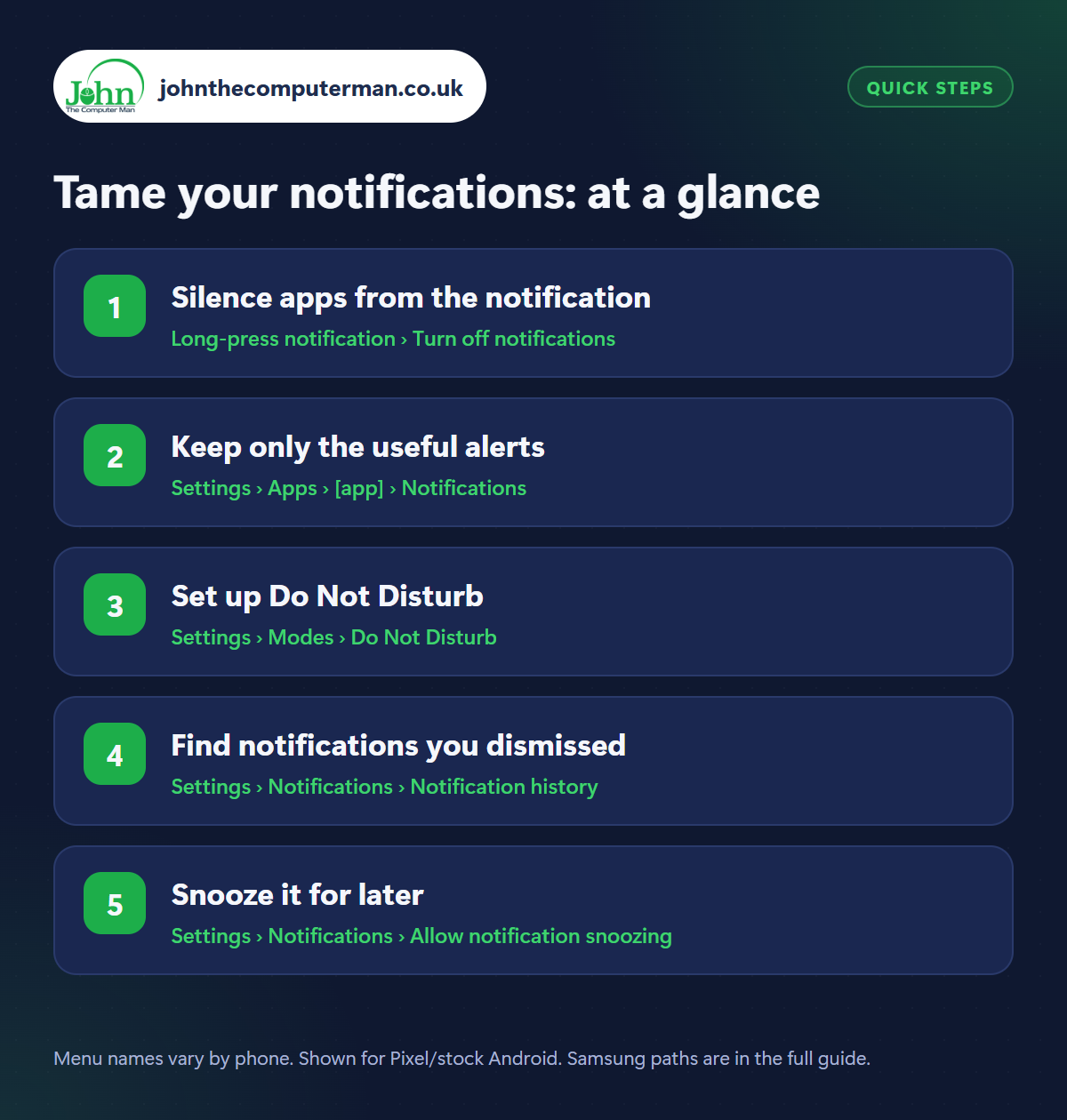
How to tame your notifications on Android
Step 1: Silence apps from the notification
Where: Long-press notification › Turn off notifications
The quickest fix is right in the notification itself. Next time an app bothers you, long-press its notification. You can switch it to Silent (it still appears, but doesn't make a sound or pop up) or tap Turn off notifications. For a full list, go to Settings › Notifications › App notifications and switch off anything you don't need.
Step 2: Keep only the useful alerts
Where: Settings › Apps › [app] › Notifications
Many apps split their notifications into categories. Shopping apps, for example, might have Order updates and Offers & promotions. Go to Settings › Apps › [app] › Notifications and switch off only the categories you don't want. That way you still hear when your parcel is coming, without the daily sales pitch.
Step 3: Set up Do Not Disturb
Where: Settings › Modes › Do Not Disturb
Samsung: Settings › Notifications › Do not disturb
Samsung: Settings › Notifications › Do not disturb
Do Not Disturb silences calls and notifications. Find it in Settings › Modes › Do Not Disturb (on older Android versions: Settings › Sound & vibration › Do Not Disturb; Samsung: Settings › Notifications › Do not disturb). Set People to allow calls and messages from starred contacts, and turn on Repeat callers so anyone calling twice in 15 minutes gets through. Add a schedule so it switches on every night.
Step 4: Find notifications you dismissed
Where: Settings › Notifications › Notification history
Samsung: Settings › Notifications › Advanced settings › Notification history
Samsung: Settings › Notifications › Advanced settings › Notification history
We've all swiped away a notification then wondered what it said. Turn on Settings › Notifications › Notification history (Samsung: Notifications › Advanced settings › Notification history). From then on you can see every notification from the last 24 hours, even ones you dismissed. There's also a History button at the bottom of the notification shade.
Step 5: Snooze it for later
Where: Settings › Notifications › Allow notification snoozing
Samsung: Settings › Notifications › Advanced settings › Show snooze button
Samsung: Settings › Notifications › Advanced settings › Show snooze button
Not ready to deal with something but don't want to forget it? Switch on Allow notification snoozing in Settings › Notifications (Samsung: Advanced settings › Show snooze button). Then tap the snooze (clock) icon on any notification and choose how long, from 15 minutes to 2 hours. It disappears and pops back up when the time is up.
Pro tip
💡 Star your closest family in Contacts. You can then let only starred contacts through Do Not Disturb, so they can always reach you in an emergency.
FAQ
Will Do Not Disturb silence my alarm?
No. Alarms still go off in Do Not Disturb by default. Check the ‘Alarms’ option is allowed if you're unsure.
Why are notifications from some apps delayed?
Battery saving can delay background apps. If an important app is late, set its battery usage to ‘Unrestricted’ in Settings › Apps.
Can I hide notification content on the lock screen?
Yes. In Settings › Notifications, choose to hide sensitive content so message previews aren't shown when your phone is locked.
The bottom line
Long-press and silence the worst offenders today, then set up Do Not Disturb with starred contacts and repeat callers. Your phone becomes calmer without you missing anything important.