Android Wi-Fi or Bluetooth Not Working? 5 Fixes to Try
Wi-Fi drops out, the phone says ‘Connected, no internet’, or your earbuds just won't pair. Connection problems are some of the most frustrating phone issues there are.
The good news is they're usually easy to fix. Work through these five steps in order. Most problems are solved by the first two.
Before you start: Android menus vary a little between phone makers. The steps below use Google Pixel / standard Android names, with Samsung Galaxy differences noted. If you can't find a setting, tap the search bar at the top of Settings and type its name.
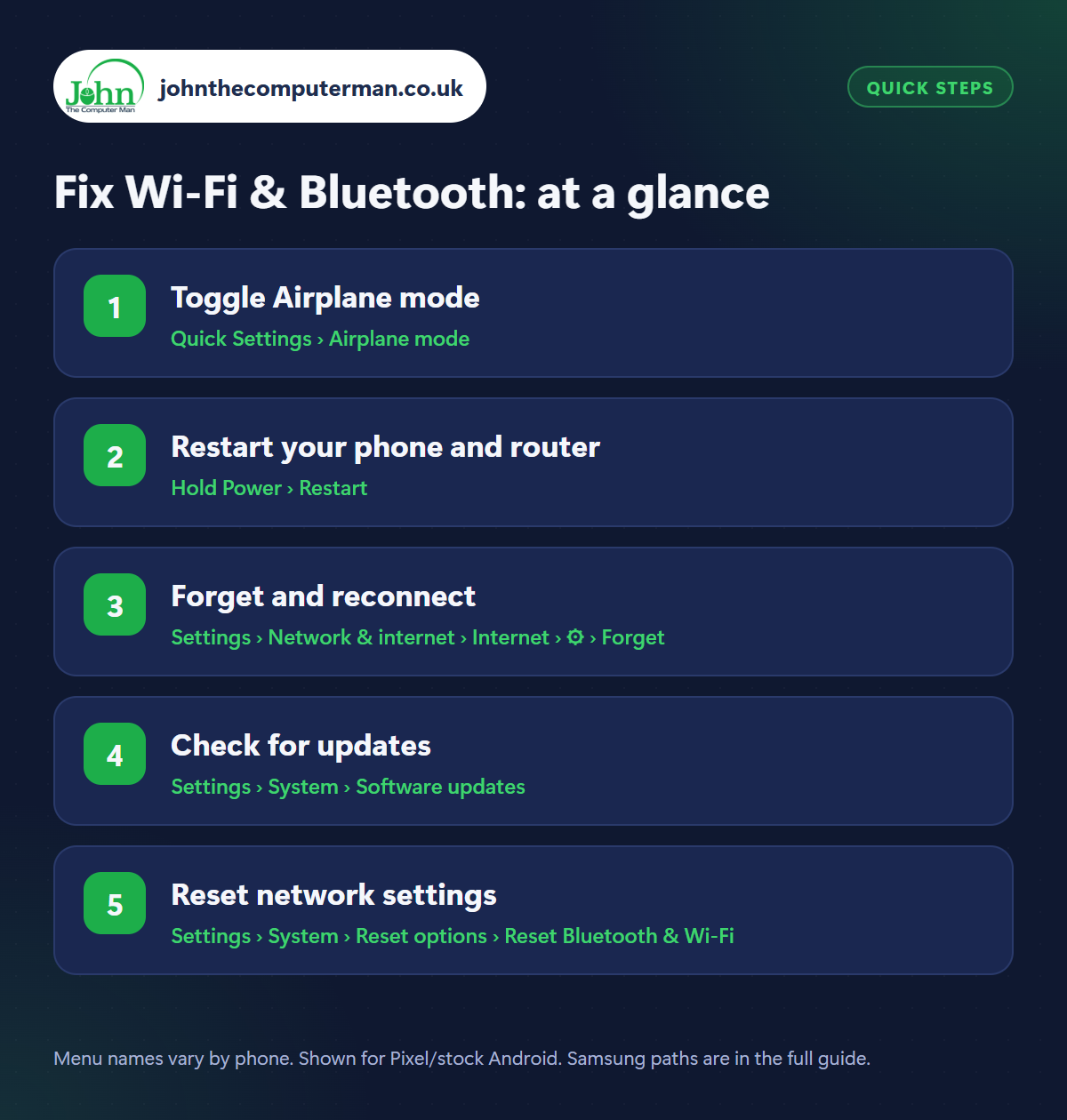
How to fix Wi-Fi & Bluetooth on Android
Step 1: Toggle Airplane mode
Where: Quick Settings › Airplane mode
Swipe down to open Quick Settings, tap Airplane mode, wait 10 seconds, then tap it again. This switches off Wi-Fi, Bluetooth and mobile data together and restarts them fresh. It fixes a surprising number of connection glitches in seconds. If it doesn't, move on to step 2.
Step 2: Restart your phone and router
Where: Hold Power › Restart
Restart your phone (hold Power, or Power + Volume Up on many newer phones, then tap Restart). For Wi-Fi problems, also unplug your router for 30 seconds and plug it back in, then give it a couple of minutes to start up. Check whether other devices can connect. If nothing can get online, the problem is your broadband, not your phone.
Step 3: Forget and reconnect
Where: Settings › Network & internet › Internet › ⚙ › Forget
Samsung: Settings › Connections › Wi-Fi › ⚙ › Forget
Samsung: Settings › Connections › Wi-Fi › ⚙ › Forget
Saved connection details can get muddled, especially after a router change. For Wi-Fi, go to Settings › Network & internet › Internet, tap the gear next to your network, then Forget (Samsung: Settings › Connections › Wi-Fi). Reconnect and type the password again. For Bluetooth, go to Settings › Connected devices, tap the gear by the device and Forget (Samsung: Unpair), then pair it again as if it were new.
Step 4: Check for updates
Where: Settings › System › Software updates
Connection bugs are regularly fixed in updates. Check Settings › System › Software updates (Samsung: Settings › Software update). For Bluetooth earbuds, headphones or watches, open their companion app (like Galaxy Wearable, Pixel Buds or Sony Headphones) and check for firmware updates as well. The fault might be in the earbuds rather than your phone.
Step 5: Reset network settings
Where: Settings › System › Reset options › Reset Bluetooth & Wi-Fi
Samsung: Settings › General management › Reset › Reset network settings
Samsung: Settings › General management › Reset › Reset network settings
If nothing else works, reset your network settings. Go to Settings › System › Reset options and choose Reset Bluetooth & Wi-Fi (on some phones Reset Wi-Fi, mobile & Bluetooth; Samsung: Settings › General management › Reset › Reset network settings). This won't delete your photos or apps, but it does forget all saved Wi-Fi networks and Bluetooth devices, so have your Wi-Fi password ready.
Pro tip
💡 ‘Connected, no internet’? It's almost always the router or broadband, not your phone. Restart the router, then check your provider's status page.
FAQ
Why does my phone keep disconnecting from Wi-Fi?
Weak signal is the usual cause. Try moving closer to the router. If it happens everywhere, forget the network and reconnect, then check for updates.
Will resetting network settings delete anything?
It removes saved Wi-Fi networks, Bluetooth pairings and VPN settings, but not your photos, apps, messages or accounts.
My earbuds connect but there's no sound. What now?
Check the output device by tapping the media controls in Quick Settings, and make sure ‘Media audio’ is turned on in the device's Bluetooth settings.
The bottom line
Airplane mode and a restart fix most problems in under a minute. Forgetting and reconnecting handles most of the rest. Save the network reset for when nothing else works.